Reports

Insights are only valuable if they lead to action—and action usually requires convincing stakeholders. Reports bridge the gap between analysis and decision-making, letting you document findings, share visualizations, and present recommendations in a format that non-technical audiences can understand.

Unlike static presentations that go stale the moment you export them, RootCause.ai reports are living documents. Charts and metrics pull from live data, so your reports stay current even as underlying datasets update. This means your monthly board deck can refresh itself, and your operational dashboards always show the latest numbers.

Reports also serve as documentation of your analytical work. By embedding evidence—links to specific Data Views, Digital Twins, and simulation runs—you create an audit trail that lets others understand and verify your reasoning.

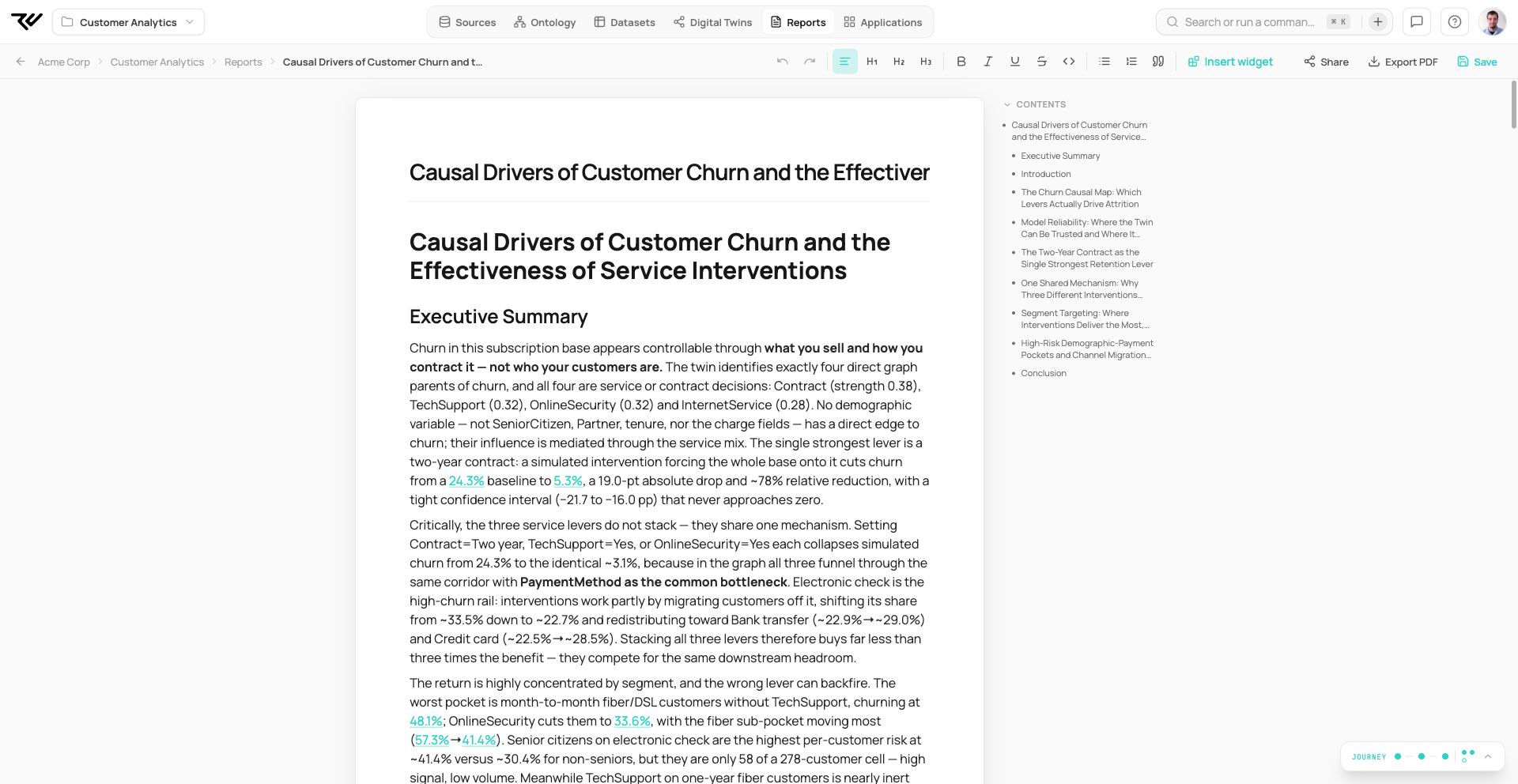
(SCREENSHOT: Report editor showing a mix of text, charts, and KPI widgets in a professional layout)


When to Use Reports

Executive Summaries

Distill complex analyses into clear narratives for leadership. Focus on insights and recommendations, with supporting data available for those who want to dig deeper.

Recurring Analytics

Weekly sales reports, monthly churn analyses, quarterly business reviews. Create once, and the live data keeps them current.

Analysis Documentation

Record your methodology, findings, and conclusions. Link to the underlying data and simulations so others can reproduce your work.

Stakeholder Communication

Share simulation results with business partners who don't need to navigate the full platform. A well-structured report tells the story without requiring platform expertise.


Creating a Report

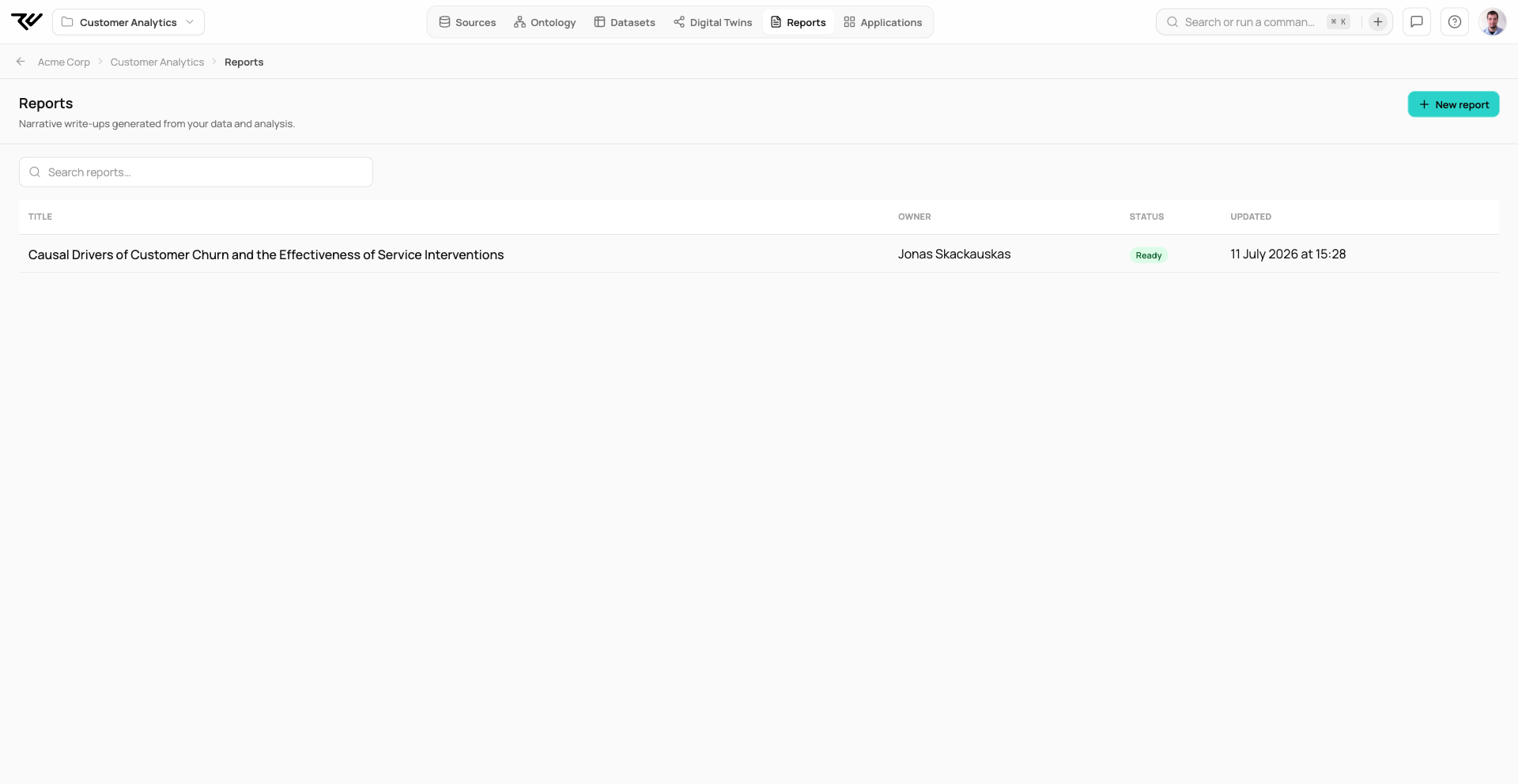
  1. Navigate to Reports in your workspace

  2. Click New Report or start typing directly in the editor

  3. Add content using the editor toolbar or slash commands

  4. Save your report with a descriptive name

Reports auto-save as you work, so you won't lose progress.

(SCREENSHOT: Empty report editor with toolbar showing formatting options)


The Report Editor

The editor feels like a modern document tool—familiar but powerful.

Text Formatting:

  • Headings: H1, H2, H3 for document structure

  • Emphasis: Bold, italic, underline

  • Lists: Bullet points and numbered lists

  • Quotes: Block quotes for highlighting key points

  • Code: Code blocks for technical details or SQL queries

Slash Commands:

Type / anywhere to see available commands:

  • /heading – Insert a heading at different levels

  • /bullet – Start a bullet list

  • /quote – Insert a block quote

  • /code – Insert a code block

  • /widget – Insert a data widget (chart, KPI, table)

(SCREENSHOT: Slash command menu showing available options)


Widgets: Live Data in Your Reports

Widgets are the magic that makes reports dynamic. Instead of pasting static screenshots, you embed live connections to your data.

Chart Widget

Display visualizations from your Data Views or simulations:

  1. Type /widget or click the widget button

  2. Select Chart

  3. Choose a data source (Data View, simulation result, etc.)

  4. Configure chart type (bar, line, scatter, etc.) and options

  5. Insert the widget

The chart updates automatically when the underlying data changes.

(SCREENSHOT: Chart widget configuration panel with data source and chart type options)

KPI Widget

Show key metrics prominently—perfect for executive summaries:

  1. Insert a KPI widget

  2. Select the metric to display

  3. Configure formatting (prefix like "$", suffix like "%", decimal places)

  4. Optionally add comparison indicators (vs. last period, vs. target)

(SCREENSHOT: KPI widgets showing metrics like revenue, conversion rate, with trend indicators)

Table Widget

Display tabular data when readers need details:

  1. Insert a Table widget

  2. Select a data source

  3. Choose columns to display

  4. Configure sorting, filtering, and pagination

Tables pull live data, so they're always current.

(SCREENSHOT: Table widget showing data with column headers and pagination)


Data Sources for Widgets

Widgets can pull data from anywhere in your workspace:

  • Data Views – Transformed datasets you've prepared

  • Digital Twin Results – Simulation outputs, metrics, and predictions

  • Custom Queries – SQL queries you write directly

Because widgets connect to live data, your reports stay current without manual updates. When a dataset refreshes, charts and KPIs automatically reflect the new numbers.


Evidence and Context

Strong reports link conclusions to evidence. RootCause.ai makes this easy:

Evidence Links

Reference specific data points, simulations, or analyses:

  1. Select text in your report (a claim or conclusion)

  2. Click Add Evidence

  3. Choose the evidence type (Data View, Simulation, Digital Twin)

  4. Select the specific object

  5. The link is embedded—readers can click through to verify

(SCREENSHOT: Evidence link dialog showing object selection)

Context Mentions

Use @ to mention workspace objects inline:

  • @Sales_2024 – Link to a specific Data View

  • @Revenue_Model – Link to a Digital Twin

  • @Q4_Optimization – Link to a simulation run

Mentions become clickable links, letting readers explore the underlying analysis.


Organizing Reports

Naming and Description

Choose names that convey content: "Q4 2024 Churn Analysis" beats "Report 1". Add descriptions explaining purpose and audience.

Table of Contents

For longer reports, a table of contents is automatically generated from your headings. Use consistent heading hierarchy to make navigation intuitive.

Suggested Structure

Most analytical reports follow a pattern:

Start with conclusions (busy executives read the top), then provide supporting detail for those who want it.

(SCREENSHOT: Report outline/table of contents panel)


Exporting Reports

PDF Export

Generate a polished PDF for sharing outside the platform:

  1. Click ExportPDF

  2. Configure page settings if needed (size, margins)

  3. Download the PDF

The exported PDF includes all text, widgets, and visualizations rendered at the moment of export. It's a snapshot—unlike the live report, it won't update.

(SCREENSHOT: PDF export dialog with page settings)

Markdown Export

Export the report text as Markdown for use in other tools, documentation systems, or version control.


Sharing Reports

Within Your Organization

Reports are visible to workspace members based on their permissions. Anyone with access to the workspace can view reports; editing may require additional permissions.

External Sharing

For people outside your organization (clients, partners, board members), use PDF export. The exported PDF is self-contained and doesn't require platform access.


Best Practices

Tell a Story

Don't just dump data—guide the reader through your reasoning:

  1. State the question: What were you trying to understand?

  2. Describe the approach: How did you analyze it?

  3. Present findings: What did you discover?

  4. Draw conclusions: What does it mean?

  5. Recommend actions: What should we do?

Lead with Insights

Put the most important findings at the top. Executives often only read the first page. Make it count.

Use Visuals Strategically

Charts communicate faster than tables. KPIs highlight what matters. But don't overdo it—every visual should serve a purpose.

Keep It Updated

Live widgets mean your reports can stay current automatically. Take advantage of this—create reports once and reuse them over time.

Document Methodology

Explain how analyses were done. What data did you use? What assumptions did you make? This builds trust and enables reproducibility.

(SCREENSHOT: Methodology section showing linked data sources and simulation references)


Next Steps

Last updated