# Build Digital Twin

The causal graph you reviewed in Step 4 is a structural map — it shows which variables influence which others. A **Digital Twin** takes that structure and fits it with equations, giving you a runnable model you can interrogate with simulations.

Building the Digital Twin is largely automatic. Your main decisions are: which type of twin to train, which variables to include, and which training options to enable.

***

## Navigate to Digital Twin

From the left sidebar, click **Digital Twin**. If this is your first twin, you'll see an empty list.

<figure><img src="/files/xtLPg6eu5MDt4T8YZ2Uz" alt="Digital Twins list, empty state, with Create Digital Twin button"><figcaption><p>The Digital Twins list. Click <strong>+ Create Digital Twin</strong> to begin.</p></figcaption></figure>

Click **+ Create Digital Twin**.

***

## Configure the twin

The configuration page has three sections: Data View, Type, and Fields.

<figure><img src="/files/HPoj0HwRocOyx7Mm7BJW" alt="Create Digital Twin configuration page showing data view, type selector, field list, and training options"><figcaption><p>Configuration page. Select the Data View, choose a type, review the field list, then pick a training path.</p></figcaption></figure>

**Data View** — select the 360 Data Table you built in Step 3. The name is auto-generated from the Data View name; you can edit it.

**Type** — choose how the model handles time:

| Type     | When to use                                                                                         |
| -------- | --------------------------------------------------------------------------------------------------- |
| Static   | Data without meaningful time ordering — customer attributes, cross-sectional snapshots, survey data |
| Temporal | Time-series data where variables influence each other across periods — trends, lags, forecasting    |

Temporal twins require a DateTime field in your Data View. If none exists, only Static is available.

**Fields** — all variables from the Data View are listed with their detected types. By default, all are included. Deselect any that are pure identifiers (customer ID, order ID) or metadata that has no causal meaning. When in doubt, include the field — the algorithm handles irrelevant variables better than missing drivers.

**Training options:**

* **Confounder Modelling** — detects and accounts for hidden variables that influence multiple observed variables. Recommended on.
* **Equation Discovery** — fits symbolic equations to describe each relationship precisely. Recommended on.

***

## Start training

Two buttons appear at the bottom:

* **Discover Relationships** — runs causal structure discovery only. Use this if you want to review the graph before committing to a full training run.
* **Full Training** — runs the complete pipeline end to end. This is the normal path.

Click **Full Training** to proceed.

***

## Training progress

Training runs five sequential stages.

<figure><img src="/files/hVamBs2uEKANP9UgigWF" alt="Training in progress showing five stages with Causal Discovery at 73% completion"><figcaption><p>Training progress. The five stages run in sequence; each can take from seconds to several minutes depending on dataset size.</p></figcaption></figure>

| Stage                       | What happens                                          |
| --------------------------- | ----------------------------------------------------- |
| Preparing Data              | Variables standardised, missing values handled        |
| Causal Discovery            | Statistical tests identify cause-and-effect structure |
| Latent Confounder Modelling | Hidden common causes detected and modelled            |
| Symbolic Equation Discovery | Equations fitted to quantify each relationship        |
| Building & Evaluating Model | Final model assembled and quality metrics computed    |

Training time ranges from a few minutes for small datasets to longer for large ones. You can navigate away — training continues in the background. A badge on the Progress icon in the left sidebar tracks completion.

***

## Review the trained twin

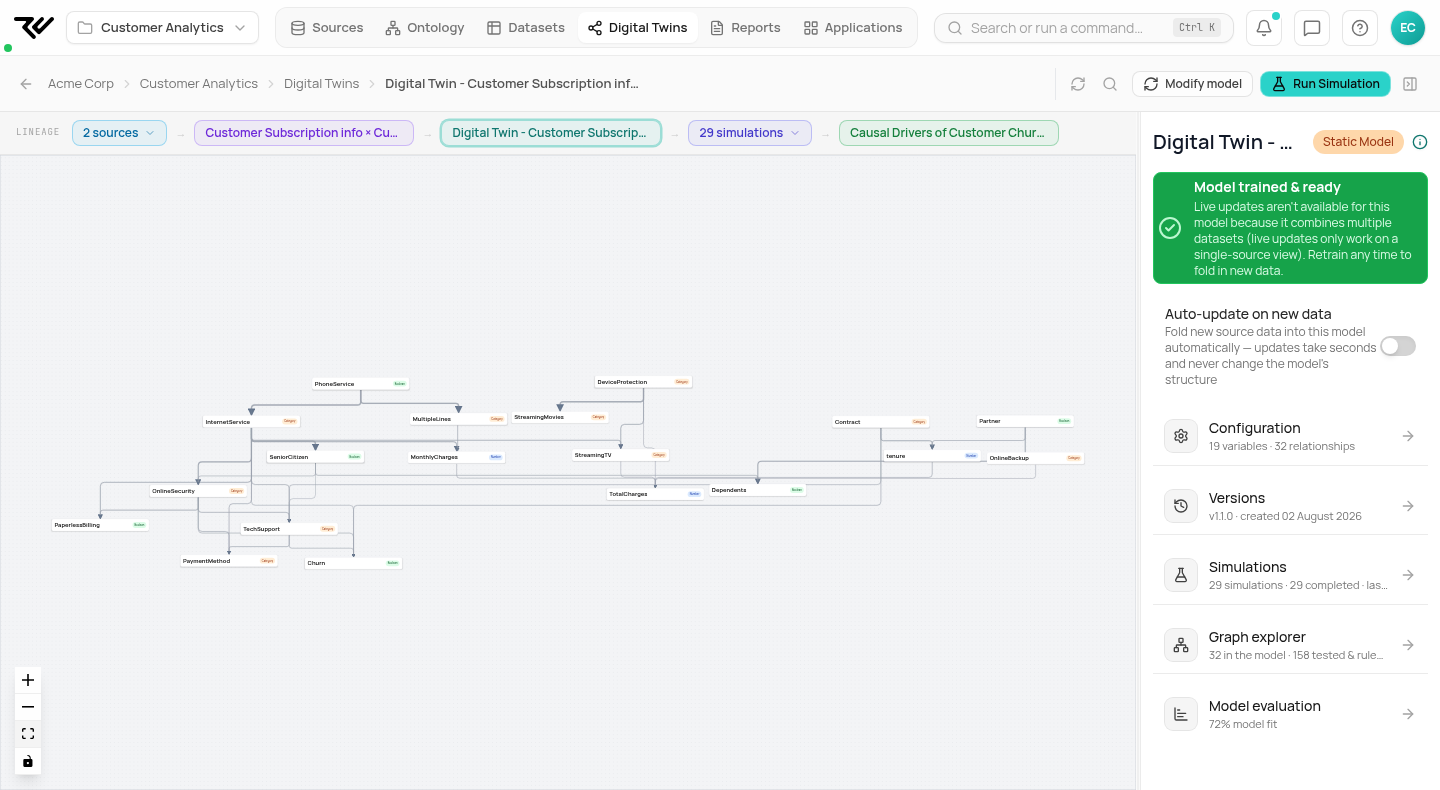
When training completes, you land on the Digital Twin overview.

<figure><img src="/files/ESi2Ku3xDxbd5pgffcfX" alt="Digital Twin overview showing model fit score, config summary, and suggested simulations"><figcaption><p>The overview after training. Config summary on the right, model fit score in the Evaluation section, and suggested simulations ready to run.</p></figcaption></figure>

The overview shows:

* **Version** — each training run creates a new version. Previous versions are retained and can be compared or rolled back to.
* **Config** — the Data View, twin type, variable count, relationship count, and algorithms used.
* **Evaluation** — overall model fit. A score above 60% is generally good; lower scores may indicate missing variables or data quality issues worth investigating.
* **Suggested simulations** — RootCause proposes simulation questions based on your model structure. These are a good starting point.

***

## Next step

Your Digital Twin is trained and ready. Now you can run simulations to ask what-if questions, find key drivers, and test interventions.

Next step: [Step 6: Run Simulations](/user-guide/simulations.md)


---

# Agent Instructions: Querying This Documentation

If you need additional information that is not directly available in this page, you can query the documentation dynamically by asking a question.

Perform an HTTP GET request on the current page URL with the `ask` query parameter:

```
GET https://docs.rootcause.ai/user-guide/creating-digital-twin.md?ask=<question>
```

The question should be specific, self-contained, and written in natural language.
The response will contain a direct answer to the question and relevant excerpts and sources from the documentation.

Use this mechanism when the answer is not explicitly present in the current page, you need clarification or additional context, or you want to retrieve related documentation sections.