For the complete documentation index, see llms.txt. This page is also available as Markdown.

Organisation Administration

The Organisation settings page manages everything about the organization itself: its identity, its roles and their permissions, its members, and how new people join. Open it from the Organization home under Manage, or from the account menu in the top-right corner.

For the container model (organizations and workspaces), see Setup Org and Workspace.


Organisation Details

The organization's basic identity. Click Edit Details to change the name.

Two brand assets can be uploaded (SVG, PNG, JPEG, or WEBP):

  • Logo — the full wordmark, displayed in the header of public apps. Cropped to a wide 3:1 frame; SVGs are kept as-is.

  • Icon — a square mark used where a full logo doesn't fit. Cropped to a 1:1 frame.

Use Replace or Remove on each, or drag and drop an image file.

The Organisation settings page with the Organisation Details section: the organisation name Acme Corp, the uploaded logo wordmark and square icon each with Replace and Remove buttons, and the Organisation Roles section starting below
Organisation Details: the name, the wide logo, and the square icon, each replaceable in place.
Organisation Roles

The Organisation Roles section lists every role with the permissions it grants. Three default roles ship with the organization:

Role
Intent

Owner

Full control of everything, including invites, settings, and billing

Admin

Full control of data, workspaces, connectors, applications, and reports; write-level access to invites, settings, and billing

User

No standing permissions; grant access per workspace or with a custom role

Permissions are grouped by area: Data, Workspaces, Connectors, Applications, Organisation Invites, Organisation Settings, Organisation Billing, and Reports. Each area is granted at one of four levels:

Level
What it allows

none

No access to the area

read

View only: no modification and no executing things

write

Create, view, and update: upload and build, but not delete others' work

full

Everything, including deletion

The Organisation Roles section listing the three default roles — Admin, Owner, and User — each with its per-area permission levels shown as coloured pills, and a Create Role button
The three default roles and their per-area levels. Create Role defines a custom one.

Click Create Role to define a custom role when the defaults don't fit, for example a role that can manage data and connectors but never touch workspaces or billing.


Workspace access

Organization roles set a member's baseline. Access to a specific workspace is granted on the workspace itself:

  • Share a workspace from the workspaces list (or the Organization home) via its Share action. Add individual users or whole roles at read, write, or full access, exactly like sharing a report.

  • Sharing with someone who is not yet in the organization sends them an invite as part of the share (this requires invite permission).

  • A member who opens a workspace they have no access to sees a request access screen; the workspace owner approves or rejects the request.

The Share Customer Analytics dialog: an Add people or roles section with User and Role tabs, a Choose user dropdown, Read, Write, and Full access pills, and a People with access list showing the workspace owner
Sharing a workspace: add users or whole roles at Read, Write, or Full access. The owner is always listed.

This is how a member with the default User role (no standing permissions) gets to work: share the workspaces they need with them, at the level they need.


Team Members

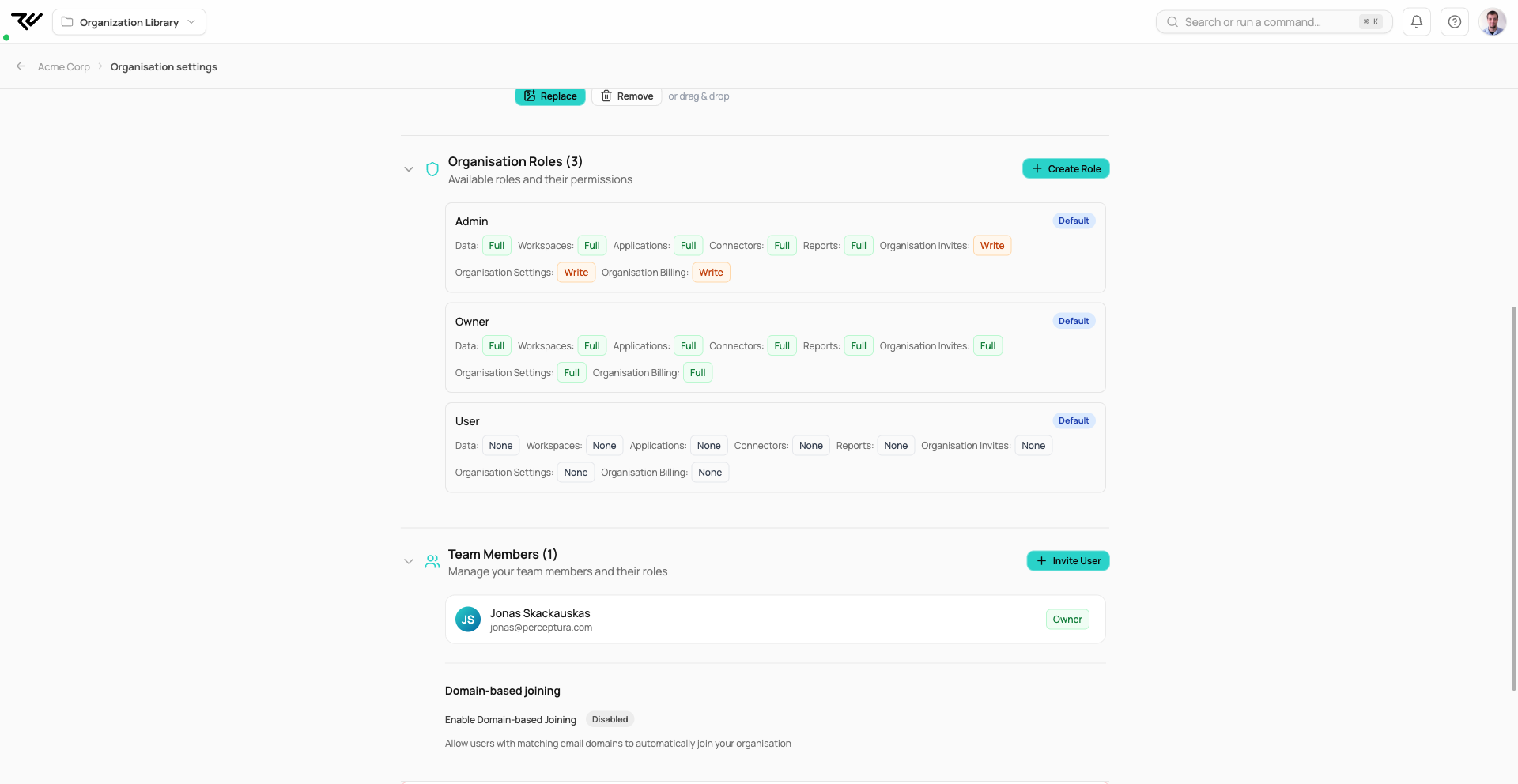
The Team Members section lists everyone in the organization with their role. Click Invite User to send an invitation and assign the new member's role.

Domain-based joining can be enabled below the member list: it allows users with matching email domains to automatically join your organization without an individual invite. It is disabled by default.

The Team Members section listing one member with the Owner role and an Invite User button, above the Domain-based joining toggle (disabled) and the top of the Danger Zone
Team Members with the Invite User action, and Domain-based joining below it.

Danger Zone

Delete Organisation permanently deletes the organization and everything in it: all workspaces, datasets, reports, roles, and invitations. This cannot be undone, and it is only available in multi-tenant deployments.

Last updated