> For the complete documentation index, see [llms.txt](https://docs.rootcause.ai/llms.txt). Markdown versions of documentation pages are available by appending `.md` to page URLs; this page is available as [Markdown](https://docs.rootcause.ai/more-details/digital-twin/simulation-types/optimization.md).

# Optimization

Optimization is a search question put to the [Digital Twin](/more-details/digital-twin.md): across many combinations of input variables, which combination moves a target metric the most in the desired direction?

Unlike a [prediction](/more-details/digital-twin/simulation-types/prediction.md), which estimates the outcome of one specified input, or an [intervention](/more-details/digital-twin/simulation-types/intervention.md), which forces one or two variables and reports the downstream effect, an optimization explores a space. You name the objective and the levers the optimizer may pull; it returns the best combination it can find.

For the workflow that produces a Digital Twin in the first place, see [Step 5: Build Digital Twin](/user-guide/creating-digital-twin.md).

***

## Starting a simulation

Open a Digital Twin from the Digital Twins list, open the **Simulations** tab, then click **New Simulation**. This opens the [type picker](/more-details/digital-twin/simulation-types.md) — choose **Optimization**.

<figure><img src="/files/6Nt6NEZvKlHAG7hXFq4h" alt="The New Simulation screen with a Generate from Query box, a Quick Start section, and the simulation type cards below: Prediction, Intervention, Optimization, Best Action, Explanation, and Root Cause Analysis"><figcaption><p>The New Simulation screen. Each type opens its own setup form.</p></figcaption></figure>

The setup form has four numbered sections plus a configuration summary at the foot. Only the first two — the objective and at least one decision variable — are required; constraints are optional and can be skipped on a first pass.

***

## Objective and decision variables

Two ideas drive every optimization.

**The objective.** The metric the optimizer will push in one direction — *Maximize TotalCharges*, *Minimize Churn*, *Maximize NPS*. The direction matters: maximize and minimize are different searches.

**The decision variables.** The levers the optimizer may pull on the way to the objective. A handful of well-chosen levers produces a recommendation a business can act on; selecting every variable invites combinations no operator would ever apply.

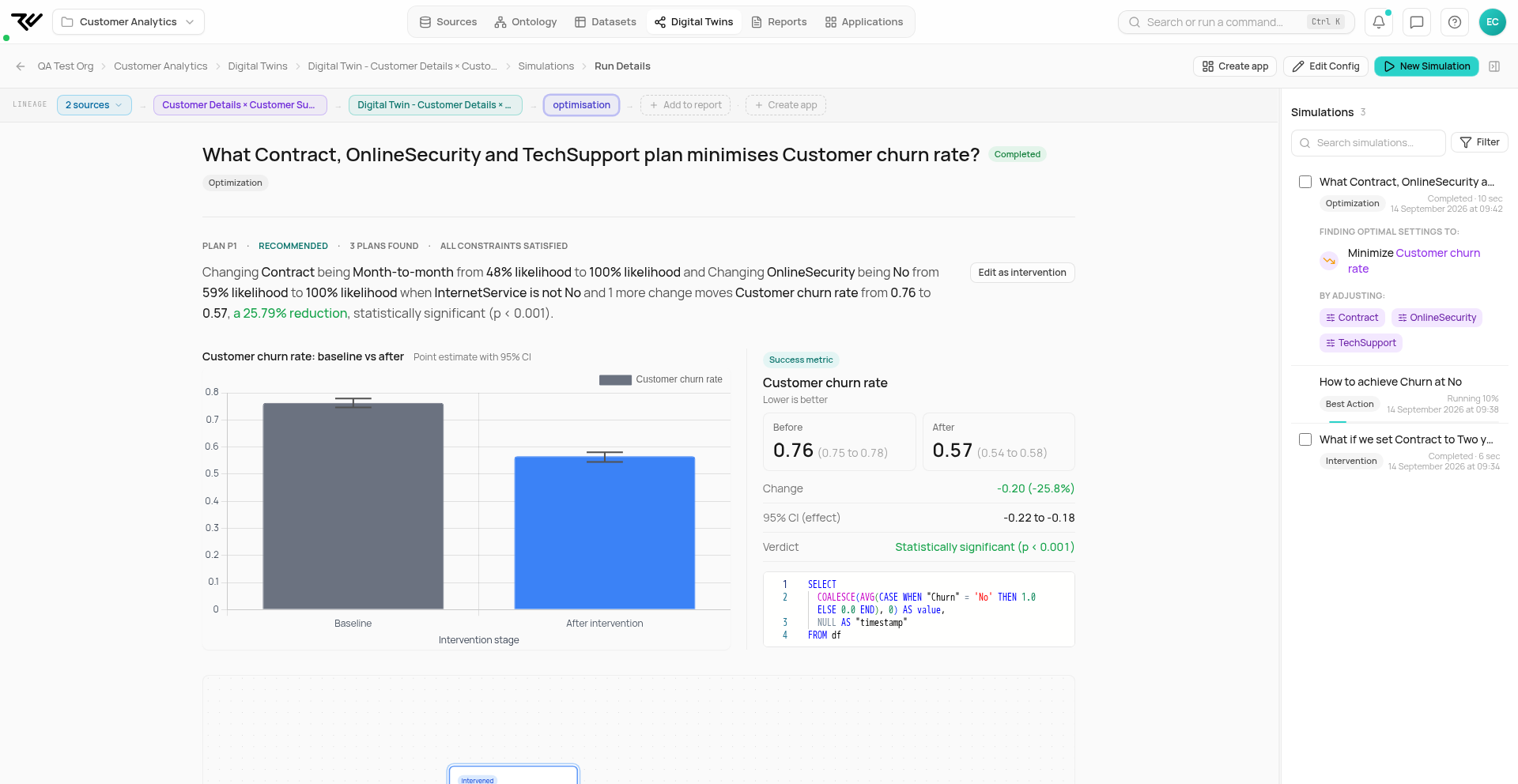
The example below minimizes the customer churn rate with three levers as decision variables: `Contract`, `OnlineSecurity`, and `TechSupport`.

***

## Step 1: Optimization objectives

An objective has a name, a direction (Maximize or Minimize), an importance weight, and a SQL expression for the metric.

The metric can be specified three ways, matching the metric builder used elsewhere in the product: **Natural Language** describes it in plain English and lets the system generate the SQL; **Builder** offers aggregation and column pickers for standard metrics; **SQL** writes the query by hand.

<figure><img src="/files/ezLXkp1js0SN0tEZ9ElI" alt="Section 1 of the Optimization form with Goal Minimize, Objective name Customer churn rate, Importance weight 1, and the Natural Language tab selected, its description box awaiting a plain-English metric description above a Generate SQL button"><figcaption><p>Natural Language. Describe the metric in plain English, say <em>the share of customers who churn</em>, and <strong>Generate SQL</strong> writes the query.</p></figcaption></figure>

<figure><img src="/files/87cjftqIhvwhzfcje4tK" alt="The same section on the SQL tab with Goal Minimize and Objective name Customer churn rate, showing SELECT COALESCE(AVG(CASE WHEN Churn = &#x27;Yes&#x27; THEN 1.0 ELSE 0.0 END), 0) as value FROM df and Test passed Result: 0.241"><figcaption><p>SQL. <strong>Test SQL</strong> confirms the baseline before the run: here, the current churn rate is 0.241.</p></figcaption></figure>

The result of **Test SQL** is the baseline against which all improvements are measured. **+ Add objective** stacks a second objective, in which case the importance weights determine the trade-off.

***

## Step 2: Decision variables

A scrollable list of every variable in the twin, with a checkbox against each one. Tick the levers the optimizer is allowed to change; selections appear as chips below the list so the chosen set is visible at a glance.

Anything left unchecked is held at its current distribution. That is useful for pinning demographics or contract terms while letting the optimizer play with product offerings.

***

## Step 3 (optional): Constraints

Two kinds of constraint narrow the search space.

**Variable constraints** bound an individual decision variable — *PhoneService can only be set to Yes*, or *MonthlyCharges must stay between 30 and 100*. **Auto Generate Constraints** asks the model to suggest sensible bounds based on the variables you picked; the suggestions can be edited manually before the run.

**Metric constraints** set rules the optimizer must respect even at the cost of a weaker objective — *average Churn must stay below 0.1*, *Electronic check share of PaymentMethod must not rise*. They are how you encode trade-offs the objective alone cannot express.

Both sections are optional. The example below uses neither — the optimizer is free to explore the unconstrained search space.

***

## Configuration Summary

The card at the foot of the form mirrors back the run in plain English, with the version of the twin the simulation will run against.

<figure><img src="/files/MxxBY35UTS3wt46vIfQS" alt="The foot of the Optimization form: an empty Metric constraints section, the version picker set to 1.0.0, and the Configuration Summary reading Finding optimal settings to Minimize Customer churn rate by adjusting Contract, OnlineSecurity, and TechSupport, above the Validate and Run Simulation buttons"><figcaption><p>The completed configuration. The summary mirrors the run back in plain English: <em>Minimize Customer churn rate</em> by adjusting Contract, OnlineSecurity, and TechSupport, with both constraint sections left empty. <strong>Validate</strong> checks the setup; <strong>Run Simulation</strong> launches the search.</p></figcaption></figure>

***

## Reading the result

A completed run carries a green **Completed** pill, a duration, and **Export PDF** and **Edit Config** controls. The page leads with three headline numbers: how many solutions the optimizer found, whether constraints were satisfied, and how long the search took.

The AI summary states the recommendation in one sentence.

<figure><img src="/files/gG5j2ofOFyoMyWaT6HBM" alt="A completed Optimization run titled Optimize minimize Customer churn rate: the AI Summary reports that setting Contract to Two year, OnlineSecurity to MISSING, and TechSupport to Yes reduces the churn rate by 87.1%, from a 0.2426 baseline to 0.0312, above the Optimization Results stats of 1 solution found, constraints satisfied, 8.7s execution, and the Recommended Solution card"><figcaption><p>The top of a completed run. The AI summary states the recommendation: a three-lever change cutting churn 87.1% from the 0.24 baseline, with all constraints satisfied, above the three headline stats. It also notes the cost side plainly: the solution requires 3 interventions.</p></figcaption></figure>

Below that, three sections give the full picture.

* **Recommended Solution.** A card describing the winning combination in plain English, with the optimized metric, the baseline, and the percentage uplift. The Recommended Changes row lists each variable that has to move and the value it has to move to. A *Global strategy* badge confirms the change applies to the entire population.
* **Baseline vs Optimized.** A paired bar chart for each objective, with baseline and optimized values side by side. The percentage label on the right is the absolute uplift.
* **All Solutions.** A table of every candidate the search produced, ranked by objective improvement. The baseline appears as row 0 for reference; ticks in the **Status** column flag solutions that satisfied every constraint. Useful for comparing runner-up strategies — a slightly worse-scoring solution sometimes involves fewer or cheaper changes.

<figure><img src="/files/lp1vAKMreLblSua1wkSA" alt="The lower half of the Optimization result: three Recommended Changes rows (Contract Month-to-month to Two year, OnlineSecurity No to MISSING, TechSupport No to Yes), an All constraints satisfied banner, the Baseline vs Optimized bar chart showing the churn rate falling from 0.24 to 0.03 (−87.14%), and the All Solutions table with the baseline as the reference row"><figcaption><p>The rest of the result: the three recommended changes, the baseline-vs-optimized chart (0.24 → 0.03, −87.14%), and the All Solutions table with the baseline as row 0. Note the OnlineSecurity recommendation: the optimizer searches every level present in the data, including a missing/blank level, so inspect recommended values before acting on them. Every section exports as PDF.</p></figcaption></figure>

***

## Past simulations

Past runs appear in the Simulations tab's run list inside the twin, and **View all simulations** on the twin's Home opens the full history. The workflow is the same as for any other simulation type — see [Prediction › Past simulations](/more-details/digital-twin/simulation-types/prediction.md#past-simulations).

***

## Other Simulation Types

* [Prediction](/more-details/digital-twin/simulation-types/prediction.md) — predict an outcome for a specific input.
* [Intervention](/more-details/digital-twin/simulation-types/intervention.md) — change a single variable and observe propagation.
* [Best Action](/more-details/digital-twin/simulation-types/best-action.md) — find the minimum change needed to reach a target outcome.
* [Explanation](/more-details/digital-twin/simulation-types/explanation.md) — understand the drivers and impacts behind an outcome.
* [Root Cause Analysis](/more-details/digital-twin/simulation-types/root-cause-analysis.md) — diagnose the cause of a specific abnormal value.
* [Anomaly Scan & Diagnosis](/more-details/digital-twin/simulation-types/anomaly-scan.md) — scan every variable for anomalies and diagnose each one.

See [Step 6: Run Simulations](/user-guide/simulations.md) — general overview.