> For the complete documentation index, see [llms.txt](https://docs.rootcause.ai/llms.txt). Markdown versions of documentation pages are available by appending `.md` to page URLs; this page is available as [Markdown](https://docs.rootcause.ai/more-details/digital-twin/simulation-types/explanation.md).

# Explanation

Explanation reads the [Digital Twin](/more-details/digital-twin.md) to answer *why*, not *what-if*. It takes a relationship that already exists in the model and decomposes it: how strongly one variable drives another, which drivers matter most, and the pathways an effect travels along. The product sums it up in one line: *understand drivers and impacts for outcomes*.

Where a [prediction](/more-details/digital-twin/simulation-types/prediction.md) tells you an outcome, an [intervention](/more-details/digital-twin/simulation-types/intervention.md) tells you what one change would do, and an [optimization](/more-details/digital-twin/simulation-types/optimization.md) finds the best combination to aim for, Explanation steps back and accounts for the causal structure itself. Nothing is changed and no new scenario is run — the tool reads the trained twin and explains it.

For the workflow that produces a Digital Twin in the first place, see [Step 5: Build Digital Twin](/user-guide/creating-digital-twin.md).

***

## Overview

Open a Digital Twin from the Digital Twins list, open its **Simulations** row (or click **Run Simulation** in the toolbar), click **New Simulation**, and choose **Explanation** from the [type picker](/more-details/digital-twin/simulation-types.md).

<figure><img src="https://1662811113-files.gitbook.io/~/files/v0/b/gitbook-x-prod.appspot.com/o/spaces%2FBXg3gZLR0e2Q8SzeQmql%2Fuploads%2Fgit-blob-e3ace7ed391f1efec25008df5381c8f3ae130b80%2Frc-explanation-new-simulation.png?alt=media" alt="The Explanation setup form opening on Step 1, Explanation mode, with three tiles — Directional, Discovery, Impact — Directional selected, and the Variables step below asking for a Cause and an Effect variable, both still empty"><figcaption><p>The Explanation setup opens on the mode step: Directional, Discovery, or Impact. The mode chosen here decides which variables the next step asks for.</p></figcaption></figure>

Every Explanation run follows the same five steps.

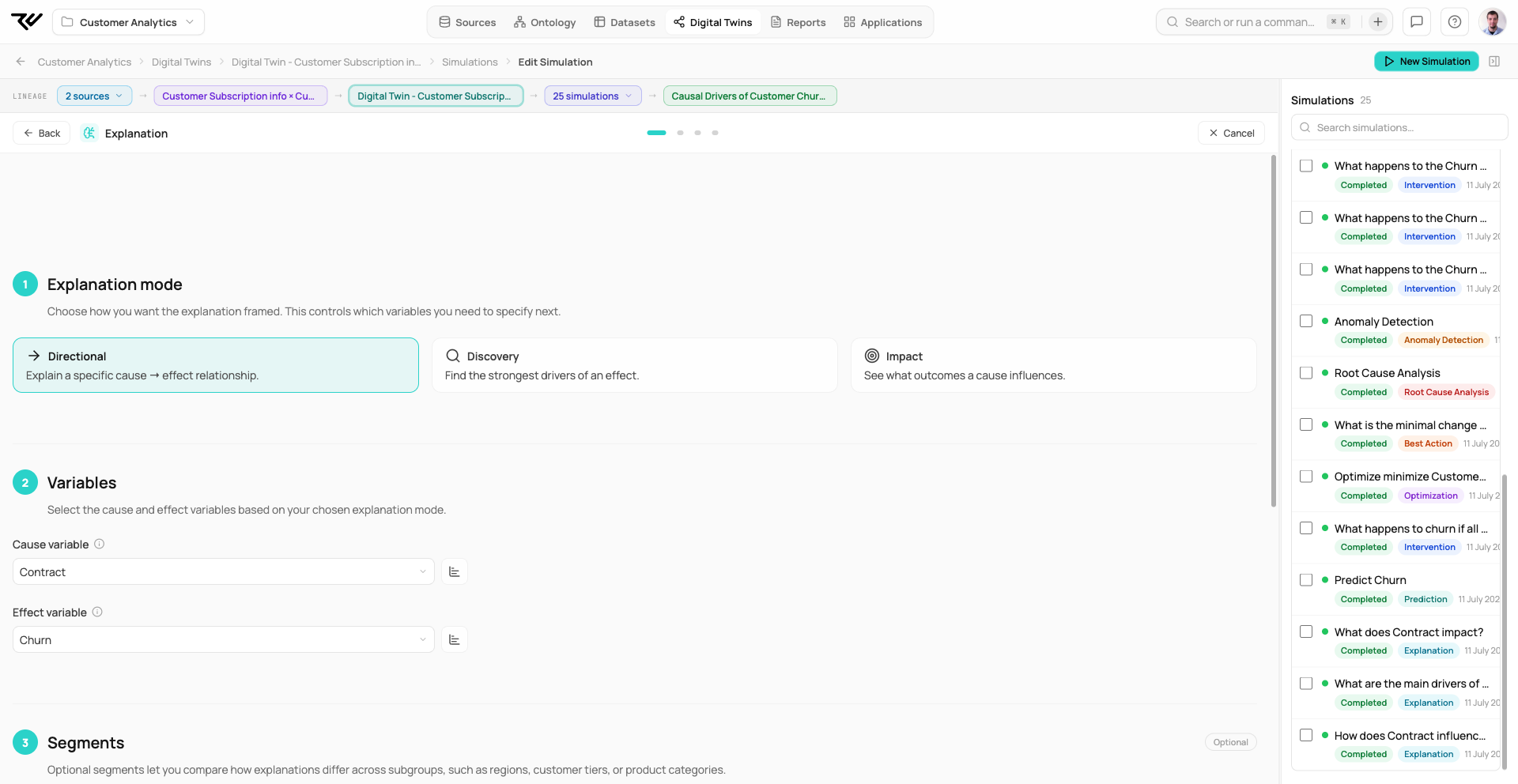
**1. Pick the mode.** The mode frames the question and decides which variables you supply next:

* **Directional** — explain a specific cause → effect relationship.
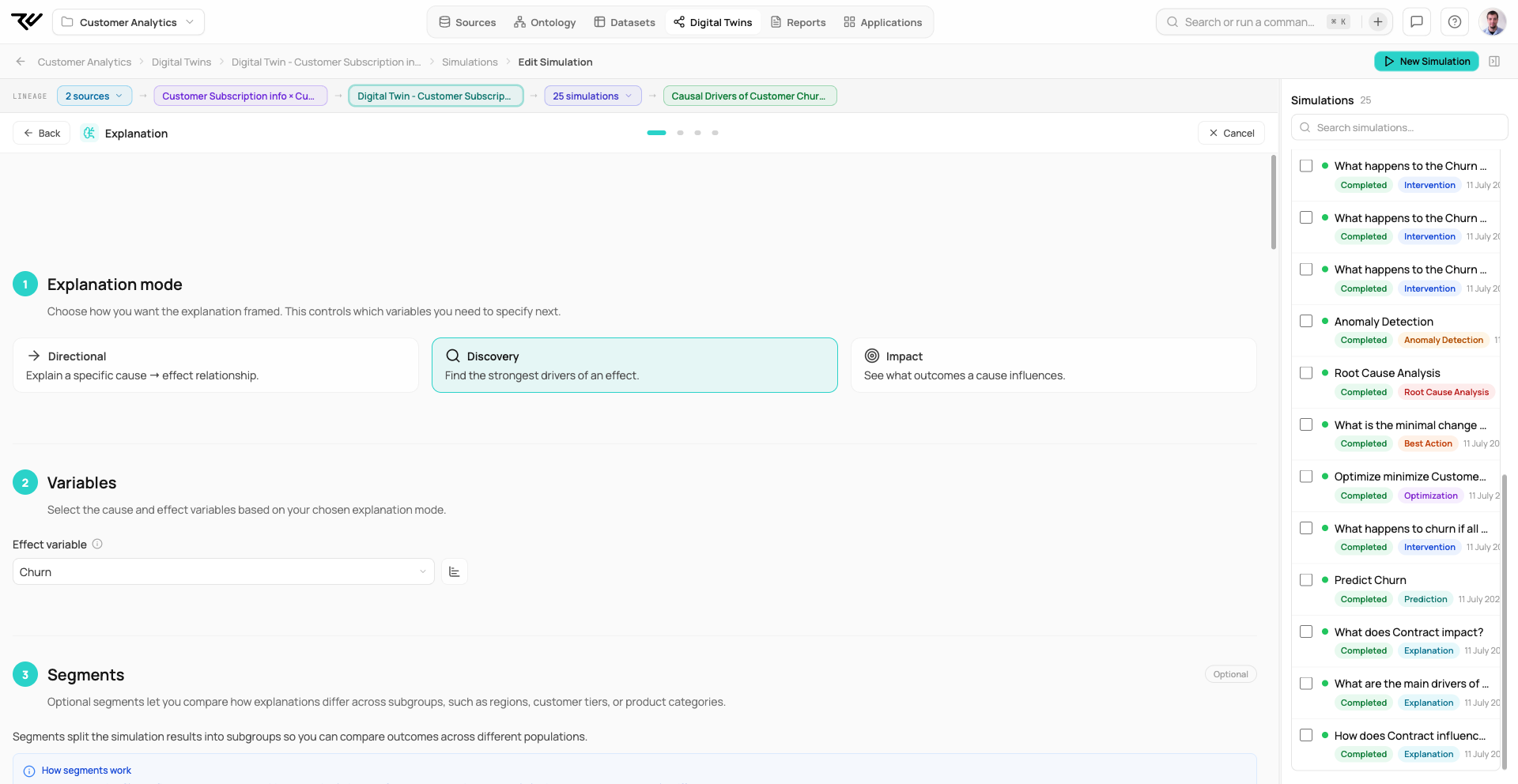
* **Discovery** — find the strongest drivers of an effect.
* **Impact** — see what outcomes a cause influences.

**2. Select the variables.** A **Cause variable** is the lever; an **Effect variable** is the outcome. The mode decides which you need — Directional asks for both, Discovery for the effect alone, Impact for the cause alone.

**3. Add segments (optional).** A segment is a filter — one or more conditions, such as *tier = premium* — that the simulation runs separately, so you can compare how an explanation differs across subgroups. The step opens on two choices: **Let the system find segments**, the default, and **Make your own**. Leaving it on the first runs the overall effect and lets the simulation find the subgroups where that effect genuinely differs, reporting them under Segment Analysis. Choosing **Make your own** reveals **Suggest Segments**, which proposes them from the twin, and **+ Add segment**, which defines one by hand.

**4. Run the simulation.** The Configuration Summary restates the run under **What we asked:** as a plain-English question — "How does Contract drive Churn?" for Directional, "What does Contract drive?" for Impact, "What causes Churn?" for Discovery. **Validate** checks the configuration; **Run Simulation** launches it against the chosen twin version.

**5. Review the results.** A finished run carries a green **Completed** pill and the actions **Create app** and **Edit Config**; its duration is shown on the run's row in the list. The result opens on the run's title and status pills, then straight into the result sections; the run's configuration is shown under its row in the list. Everything below that depends on the mode. To get a PDF, tick the run in the list, click **Export 1 as report**, and use **Export PDF** in the report editor.

***

## Detailed explanation

The mode chosen in step 1 changes both the inputs you supply and the result you get back. Each of the three is shown below with its own setup (input) and result (output).

### Option 1 — Directional

*Explain a specific cause → effect relationship.* Use Directional when you already have a hypothesis — "does Contract affect Churn?" — and want it quantified. It asks for both a **Cause variable** and an **Effect variable**.

<figure><img src="https://1662811113-files.gitbook.io/~/files/v0/b/gitbook-x-prod.appspot.com/o/spaces%2FBXg3gZLR0e2Q8SzeQmql%2Fuploads%2Fgit-blob-d723893639353c46147999e34ddc49858fb2df47%2Frc-explanation-directional-setup.png?alt=media" alt="The Explanation setup form in Directional mode: Step 1 has Directional selected, Step 2 shows Cause variable Contract and Effect variable Churn, and the optional Segments step follows below"><figcaption><p><strong>Input.</strong> Both a Cause variable (Contract) and an Effect variable (Churn) are set; Step 3 Segments is left on <strong>Let the system find segments</strong>, so the run reports the overall effect and discovers the subgroups where it differs.</p></figcaption></figure>

The Directional result leads with the pair itself as a heading — *Contract → Churn* — with a confidence badge beside it and one plain-English sentence quantifying the shift: where the outcome starts, where it lands (here *Churn: Yes* from **22.7% to 35.5%**, +12.7 percentage points), and how much of the effect is direct. Below it, **Categorical Outcome Analysis** breaks the shift down by outcome value, with a Show Deltas / Show Absolute toggle. **Causal pathways** then draws the routes from the cause to the outcome as a graph: a thicker ribbon carries more of the total effect, and a direct ribbon means the effect does not pass through an in-between variable. A **Segment Analysis** section closes the page.

<figure><img src="https://1662811113-files.gitbook.io/~/files/v0/b/gitbook-x-prod.appspot.com/o/spaces%2FBXg3gZLR0e2Q8SzeQmql%2Fuploads%2Fgit-blob-c28bfd87ba90f3915a54ef9d7a3d8d9fc6507c33%2Frc-explanation-directional-result.png?alt=media" alt="A Directional Explanation result headed Contract to Churn with a High confidence badge and a sentence reporting Churn Yes moving from 22.7% to 35.5%, plus 12.7 percentage points, driven almost entirely by the direct path, above the start of the categorical outcome chart"><figcaption><p><strong>Output.</strong> The heading is the relationship itself, with one sentence quantifying the shift: Contract moves <em>Churn: Yes</em> from 22.7% to 35.5%.</p></figcaption></figure>

<figure><img src="https://1662811113-files.gitbook.io/~/files/v0/b/gitbook-x-prod.appspot.com/o/spaces%2FBXg3gZLR0e2Q8SzeQmql%2Fuploads%2Fgit-blob-c93a0fffa33f1deb0761645608d164c2e1e08c54%2Frc-explanation-directional-result-detail.jpeg?alt=media" alt="Further down the same Directional result: the Causal Pathways donut attributing 97.8% of the effect to the Direct Effect, with three small indirect paths through TechSupport, PaymentMethod, and OnlineSecurity; and Segment Analysis for the overall population with per-contract-type effects, all High confidence"><figcaption><p>Deeper in the same result: Causal Pathways attributes 97.8% of the effect to the direct path, and Segment Analysis breaks the effect out by contract type.</p></figcaption></figure>

### Option 2 — Discovery

*Find the strongest drivers of an effect.* Use Discovery when you know the outcome you care about but not what moves it most. It asks only for the **Effect variable**.

<figure><img src="https://1662811113-files.gitbook.io/~/files/v0/b/gitbook-x-prod.appspot.com/o/spaces%2FBXg3gZLR0e2Q8SzeQmql%2Fuploads%2Fgit-blob-085198c7d72796e57289953560af361e3b29d022%2Frc-explanation-discovery-setup.png?alt=media" alt="The Explanation setup form in Discovery mode. Step 1 has Discovery selected; Step 2 Variables asks only for an Effect variable, set to Churn; the optional Segments step follows with a How segments work note"><figcaption><p><strong>Input.</strong> Discovery needs only the Effect variable (Churn); the Segments section is identical across all three modes.</p></figcaption></figure>

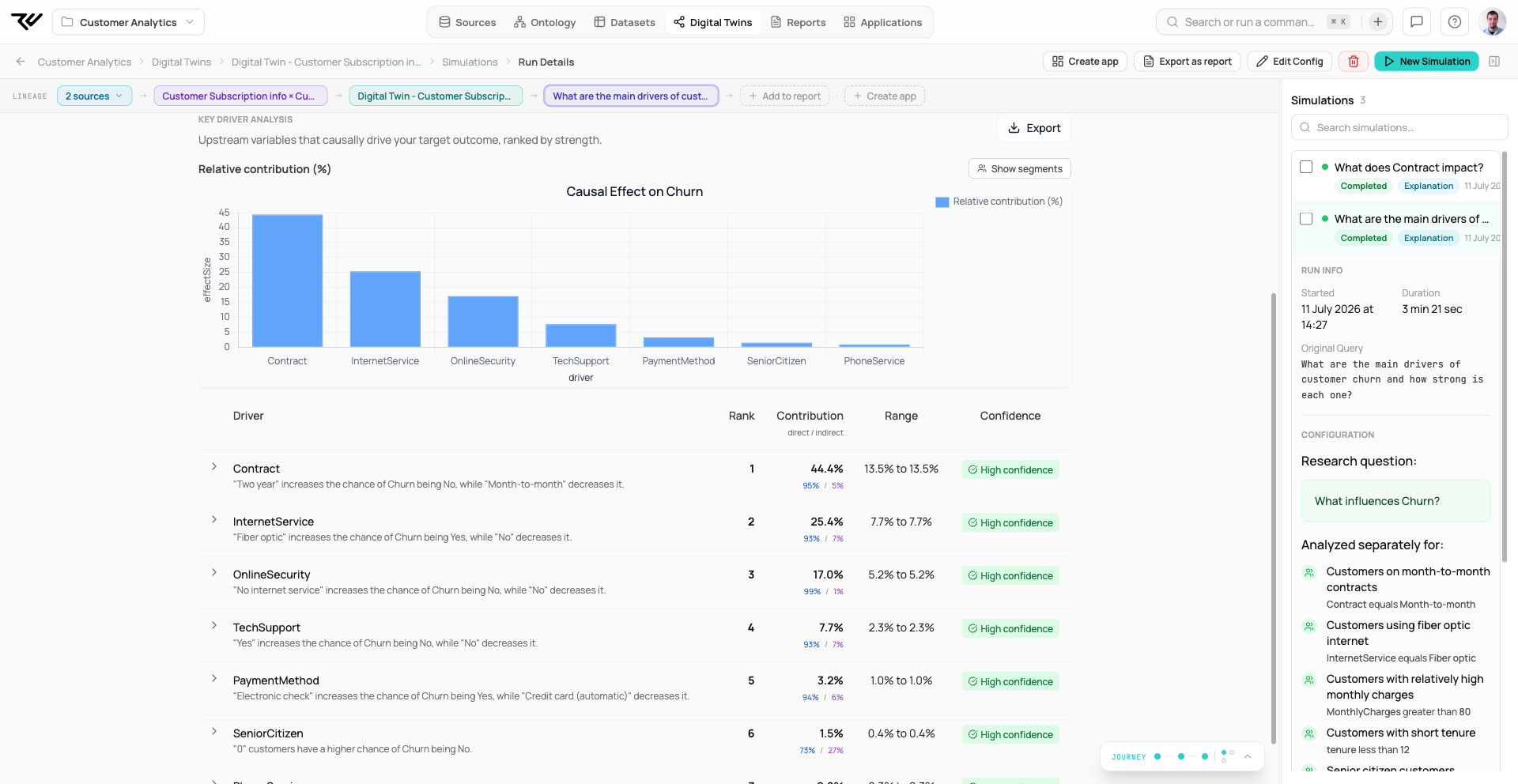
The result is a **Key Driver Analysis** — a ranked bar chart of each driver's *Relative contribution (%)* to the *Causal Effect on Churn*, with Contract, InternetService, and OnlineSecurity topping the list.

Beneath the chart, every driver is a row — **Driver**, **Rank**, **Contribution**, **95% CI (effect)**, **Confidence** — and each one expands into the same deep analysis a Directional run produces for a single pair. Discovery is, in effect, Directional run across every driver at once and ranked.

<figure><img src="https://1662811113-files.gitbook.io/~/files/v0/b/gitbook-x-prod.appspot.com/o/spaces%2FBXg3gZLR0e2Q8SzeQmql%2Fuploads%2Fgit-blob-393332bc8581a5b8c8be752195b30b31775ffa61%2Frc-simulation-key-drivers.png?alt=media" alt="The Discovery Explanation result: the Key Driver Analysis bar chart titled Causal Effect on Churn with Contract highest, above the ranked driver table where Contract contributes 44.4%, InternetService 25.4%, OnlineSecurity 17.0%, TechSupport 7.7%, and PaymentMethod 3.2%, each row with a range, a direct and indirect split, and High confidence"><figcaption><p><strong>Output.</strong> The ranked drivers: each row carries its contribution, range, and confidence, and expands into the full pathway breakdown.</p></figcaption></figure>

### Option 3 — Impact

*See what outcomes a cause influences.* Use Impact when you know the lever and want to trace everything downstream of it. It asks only for the **Cause variable**.

<figure><img src="https://1662811113-files.gitbook.io/~/files/v0/b/gitbook-x-prod.appspot.com/o/spaces%2FBXg3gZLR0e2Q8SzeQmql%2Fuploads%2Fgit-blob-da3fe167e965dd96f1de3450120476cc17c5ac66%2Frc-explanation-impact-setup.png?alt=media" alt="The Explanation setup form in Impact mode. Step 1 shows the three mode tiles — Directional, Discovery, Impact — with Impact selected; Step 2 Variables asks only for a Cause variable, set to Contract; the optional Segments step follows below"><figcaption><p><strong>Input.</strong> Impact needs only the Cause variable (Contract).</p></figcaption></figure>

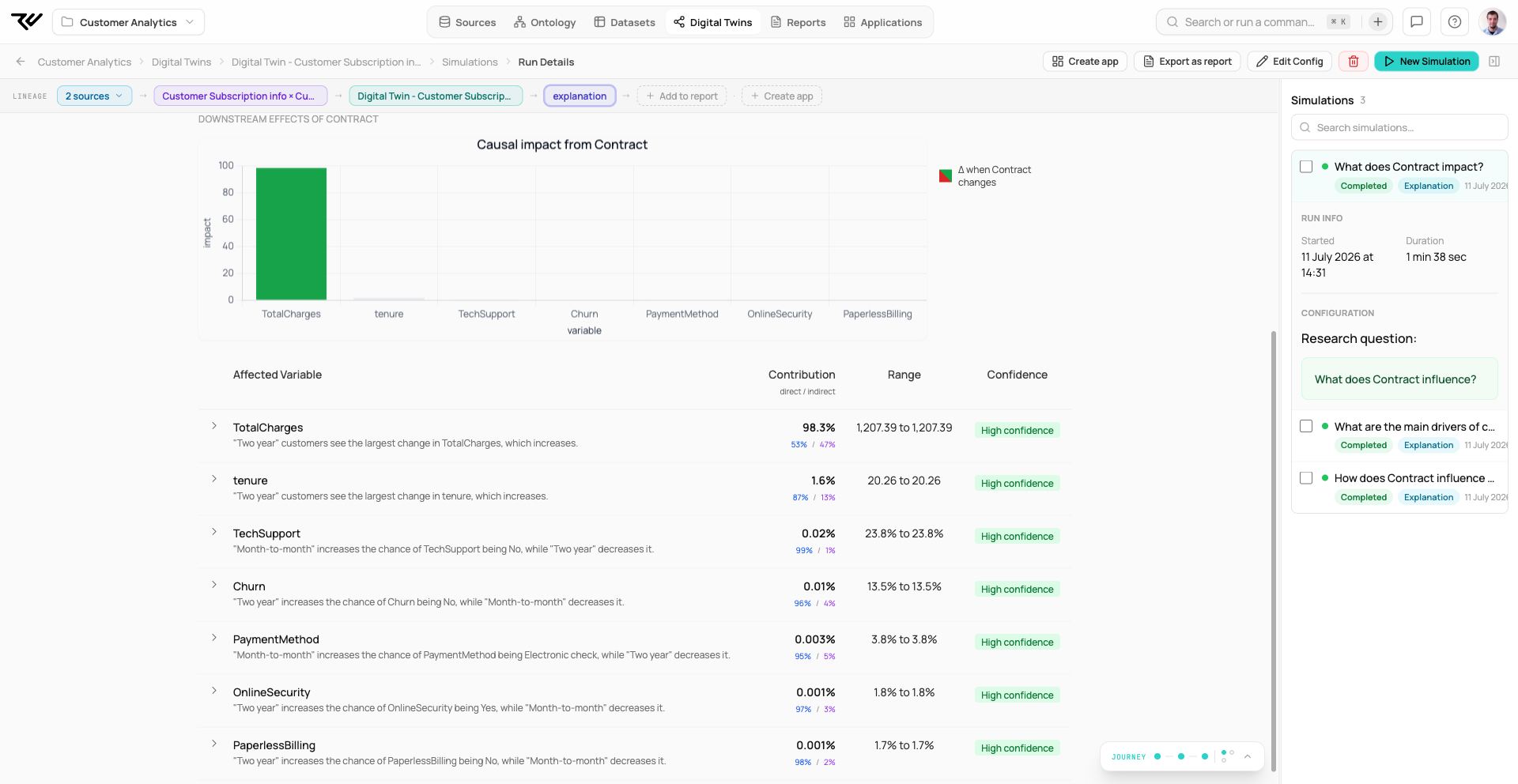
The result is an **Impact Analysis** — a *Downstream Effects* chart plotting the *Causal impact from* the chosen cause across the variables it reaches, and an **Affected Variable** table giving each one a **Contribution** (split into direct and indirect), a **95% CI (effect)**, and a **Confidence** rating. It is the mirror image of Discovery: one cause, many effects, rather than one effect, many causes.

<figure><img src="https://1662811113-files.gitbook.io/~/files/v0/b/gitbook-x-prod.appspot.com/o/spaces%2FBXg3gZLR0e2Q8SzeQmql%2Fuploads%2Fgit-blob-ce69ad9a7c600d0e1e0cec8b507b259feba5e64f%2Frc-explanation-impact-result.png?alt=media" alt="An Impact Explanation result for the question What does Contract drive? The Downstream Effects of Contract chart shows TotalCharges towering over every other variable, and the Affected Variable table lists TotalCharges at 98.3% contribution, then tenure, TechSupport, Churn, PaymentMethod, OnlineSecurity, and PaperlessBilling, each with a range and High confidence"><figcaption><p><strong>Output.</strong> Contract's downstream footprint is dominated by TotalCharges at 98.3%; every other affected variable, including Churn, carries a sliver of the total impact.</p></figcaption></figure>

***

## Past simulations

Past runs appear in the twin's run list, which the **Simulations** row on the twin's Home opens. The workflow is the same as for any other simulation type — see [Prediction › Past simulations](/more-details/digital-twin/simulation-types/prediction.md#past-simulations).

***

## Outside the UI

This simulation runs from the Python SDK and from the REST API, with the same configuration the wizard collects.

```python
>>> twin.explain(effect="Churn")
```

Over REST it is a scenario on `POST /api/v1/workspaces/{workspaceId}/simulations` with `"type": "explanation"`, or `temporal_explanation` / `panel_explanation`. Pass `effect=` for what drives a variable, `cause=` for what it goes on to affect, or both to explain the paths between them.

See [Working with Digital Twins](/api-and-integrations/sdk-getting-started/sdk-working-with-twins.md) for the SDK, and [Running Simulations over REST](/api-and-integrations/rest-running-simulations.md) for the request body.

***

## Other Simulation Types

* [Prediction](/more-details/digital-twin/simulation-types/prediction.md) — predict an outcome for a specific input.
* [Intervention](/more-details/digital-twin/simulation-types/intervention.md) — change a single variable and observe propagation.
* [Optimization](/more-details/digital-twin/simulation-types/optimization.md) — find the input combination that maximizes or minimizes a target.
* [Best Action](/more-details/digital-twin/simulation-types/best-action.md) — find the minimum change needed to reach a target outcome.
* [Root Cause Analysis](/more-details/digital-twin/simulation-types/root-cause-analysis.md) — diagnose the cause of a specific abnormal value.
* [Anomaly Scan & Diagnosis](/more-details/digital-twin/simulation-types/anomaly-scan.md) — scan every variable for anomalies and diagnose each one.

See [Step 6: Run Simulations](/user-guide/simulations.md) — general overview.