For the complete documentation index, see llms.txt. This page is also available as Markdown.

Best Action

Best Action runs the Digital Twin's counterfactual reasoning in reverse: given a record you want to change, what is the smallest set of changes that would reach a target outcome?

Where an optimization searches a whole population for the combination that pushes a metric furthest, Best Action starts from specific records — individual customers, machines, or cases — and finds the minimal action for each one. A prediction tells you a customer is likely to churn; an intervention tells you what one change would do across everyone; Best Action tells you the fewest changes that would turn this customer from churn to retained, and how confident the model is in each.

For the workflow that produces a Digital Twin in the first place, see Step 5: Build Digital Twin.


Starting a simulation

Open a Digital Twin from the Digital Twins list, open the Simulate tab, then click New Simulation. This opens the type picker — choose Best Action.

The setup form has four numbered sections plus a configuration summary at the foot. Only the first two — the target outcomes and at least one baseline record — are required; constraints and the change limit refine the search but can be left at their defaults on a first pass.

The empty Best Action setup form: Target outcomes with the target variable and value unset, and Baseline states reading No records added yet
The empty setup form. The stepper at the top walks the sections in order; nothing runs until a target and at least one record are set.

Targets and baselines

Two ideas drive every Best Action run.

The target. The outcome you want each record to reach — Churn = No, Defect = Pass, Approved = Yes. This is the destination the solver works back from.

The baseline states. The records you want to move there — the customers at risk, the cases that failed, the units that fell out of spec. Each row is a starting point; the solver treats them independently and returns one action plan per row. This is what sets Best Action apart from the other simulation types: it operates on concrete records, not the population as a whole.


Step 1: Target outcomes

Set the outcome the solver must reach. Each target is a variable and the value it should take — for example Churn set to No.

Section 1 of the Best Action form with target variable Churn and target value No, a note reading Match mode: Exact — tolerance and direction modes apply only to numeric targets, and the Baseline states section starting below
A target outcome, Churn set to No. For categorical targets the match is exact; numeric targets add tolerance and direction modes. The Baseline states section, covered next, starts below.
For a categorical target such as Churn, the match mode is Exact — the outcome must equal the chosen value. Numeric targets unlock tolerance modes (reach within a band) and direction modes (at least, at most). + Add target stacks a second outcome the solver must satisfy at the same time.


Step 2: Baseline states

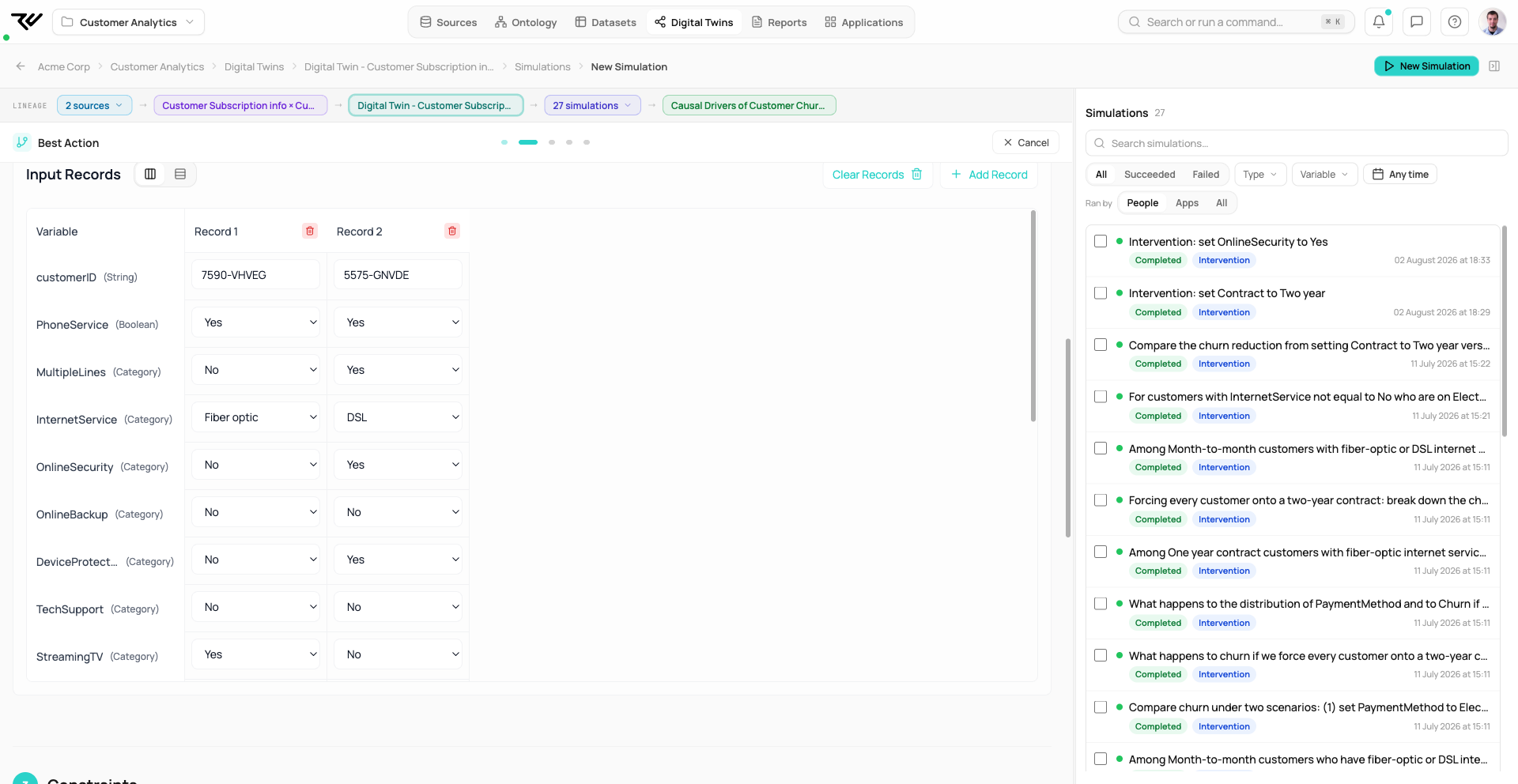
The records to act on. Each row is a starting state the solver will try to nudge to the target. There are three ways to supply them:

  • Field Input — enter records by hand in a table, one column per record, choosing a value for each variable from a dropdown. Best for a handful of cases.

  • File Upload — drop in a CSV. The file must carry every variable in the twin as a column; the panel lists the exact set it expects.

  • Data View — pull rows straight from an existing Data View, the natural choice when the records you care about already live in the workspace.

The Baseline states section on the Field Input tab, showing an Input Records table with a column per record and a value set for every variable — customerID, gender, SeniorCitizen, Partner, tenure, Churn, and so on
Field Input. Each record is a column; set a value for every variable to define a starting state.
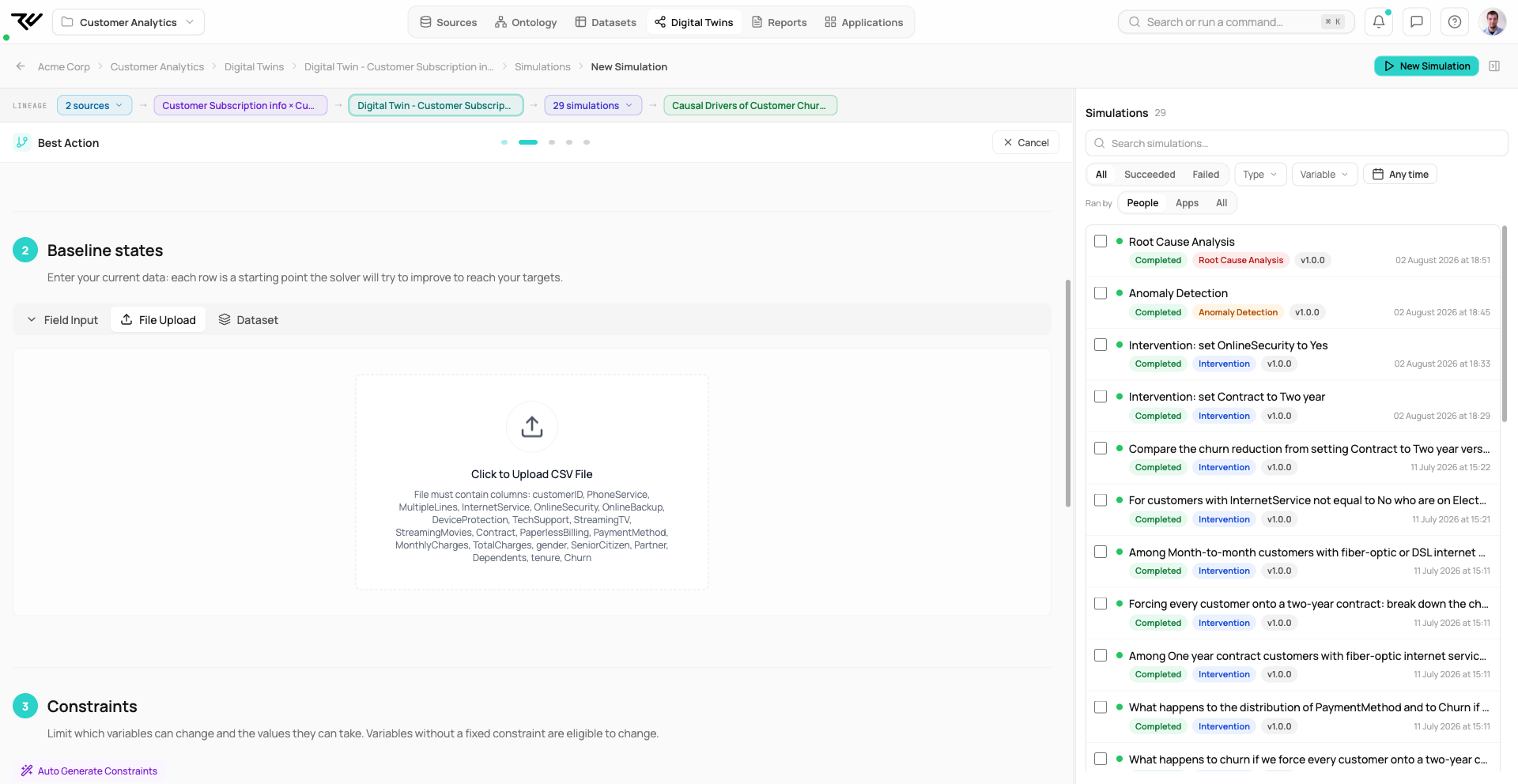
The Baseline states section on the File Upload tab, with a dashed drop zone reading Click to Upload CSV File and the list of required columns the file must contain
File Upload. The CSV must contain every variable the twin uses as a column.

The more representative the baseline records, the more actionable the result — a row that is already close to the target needs only a small change, which is exactly the recommendation Best Action is designed to surface.


Step 3 (optional): Constraints

Constraints work exactly as they do for an optimization. A constraint can pin a variable so the solver may not touch it — useful for fields a business cannot change, such as a customer's tenure or demographics — or puts bounds on the values an eligible variable may take. Auto Generate Constraints proposes sensible bounds from the variables in the twin, which can then be edited by hand.

Any variable without a fixed constraint is eligible to change. Constraints are optional; leaving them empty lets the solver consider every variable.


Step 4: Limit changes

The defining control of Best Action. Max changes caps how many variables the solver may change in any single record's recommendation. A low cap yields simple, actionable plans — change one or two things — while a higher cap lets the solver reach harder targets at the cost of asking more of the operator.

This is the knob that makes the result a next best action rather than a wholesale redesign: it forces the solver to find the shortest path to the target, not merely a path.


Configuration Summary

The card at the foot of the form mirrors back the run in plain English — the target, the number of starting records, and the change cap — alongside the version of the twin the simulation will run against.

The populated Best Action form with target Churn = No, match mode Exact, and a Baseline states table of customer records on the Field Input tab
The populated form: target Churn = No and the baseline records in place. Run Simulation launches the search across every baseline record.
Reading the result

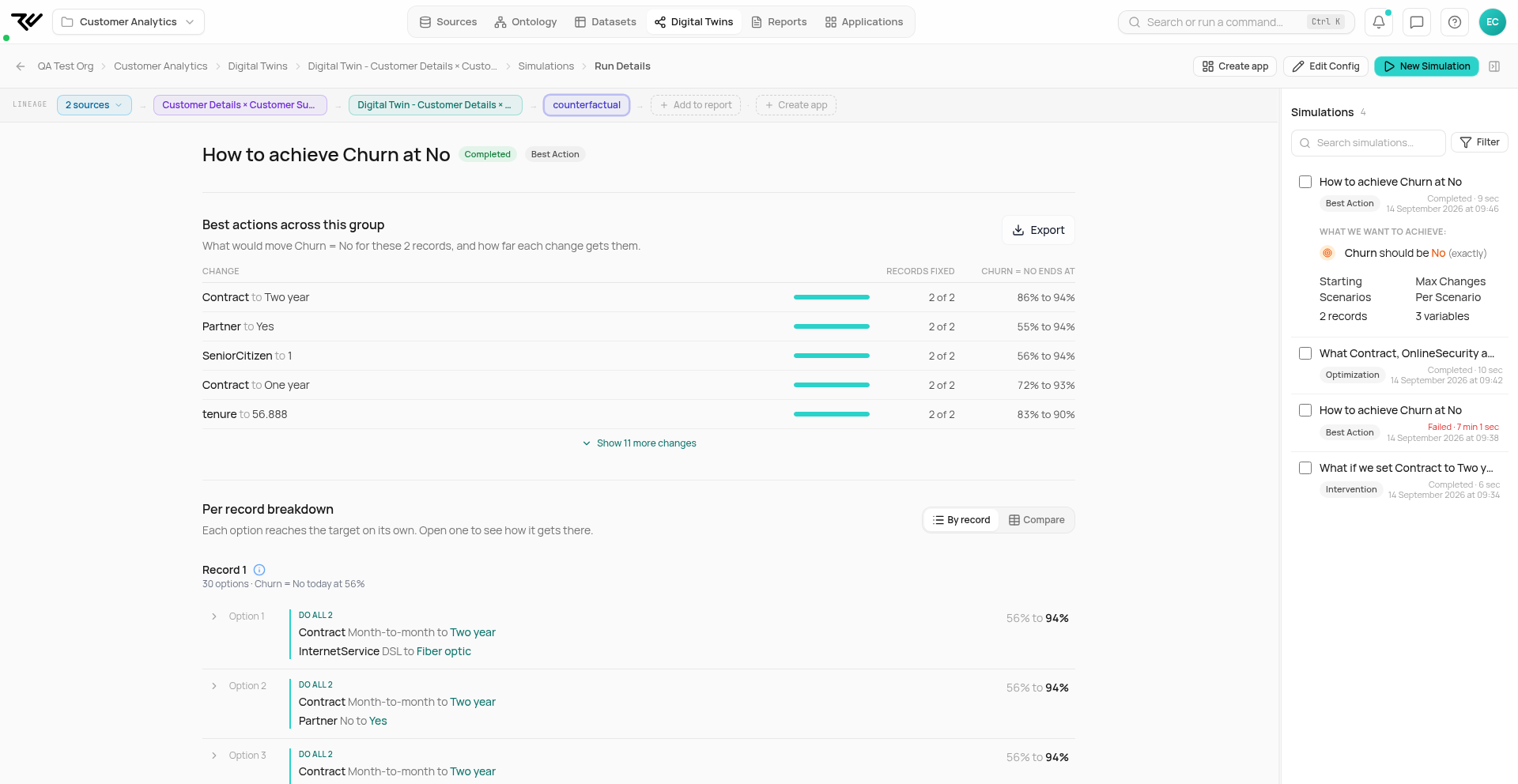
A completed run carries a green Completed pill, a duration, and Export PDF and Edit Config controls. The page leads with an AI summary that reads the whole result set at once — the most consistent lever across records, how many targets were met, and where the easy wins are.

Below the summary, Next Best Action Results lists one block per baseline record. Each block names the record (Sample #1, #2, …), reports how many actions were found, and lists each recommended change as a row: the variable, its current value, the value to move it to, and a confidence score for that change. Records needing more than a few changes show a Show N more actions expander.

Because the recommendations are per record, the result is a worklist rather than a single headline: high-confidence single-change records are the cheapest wins, while records that need several changes can be triaged or set aside.

The Next Best Action Results for Samples #1 and #2, each with one recommended action pairing a Contract change with OnlineSecurity set to Yes, at 81.22% and 94.95% confidence, next to a sidebar showing the run configuration Churn should be No exactly across 2 starting records with at most 3 variables changed per scenario
The result list, one block per record. Sample #1 reaches Churn = No by moving Contract to One year and OnlineSecurity to Yes at 81.22% confidence; Sample #2 moves Contract to Two year and OnlineSecurity to Yes at 94.95%. The sidebar restates the run: Churn = No across 2 starting records, at most three variables changed per scenario. Every section exports as PDF.

Past simulations

Past runs appear in the Simulate tab's run list inside the twin, and View all simulations on the twin's Home opens the full history. The workflow is the same as for any other simulation type — see Prediction › Past simulations.


Other Simulation Types

See Step 6: Run Simulations — general overview.

Last updated