# Exploring the Causal Model

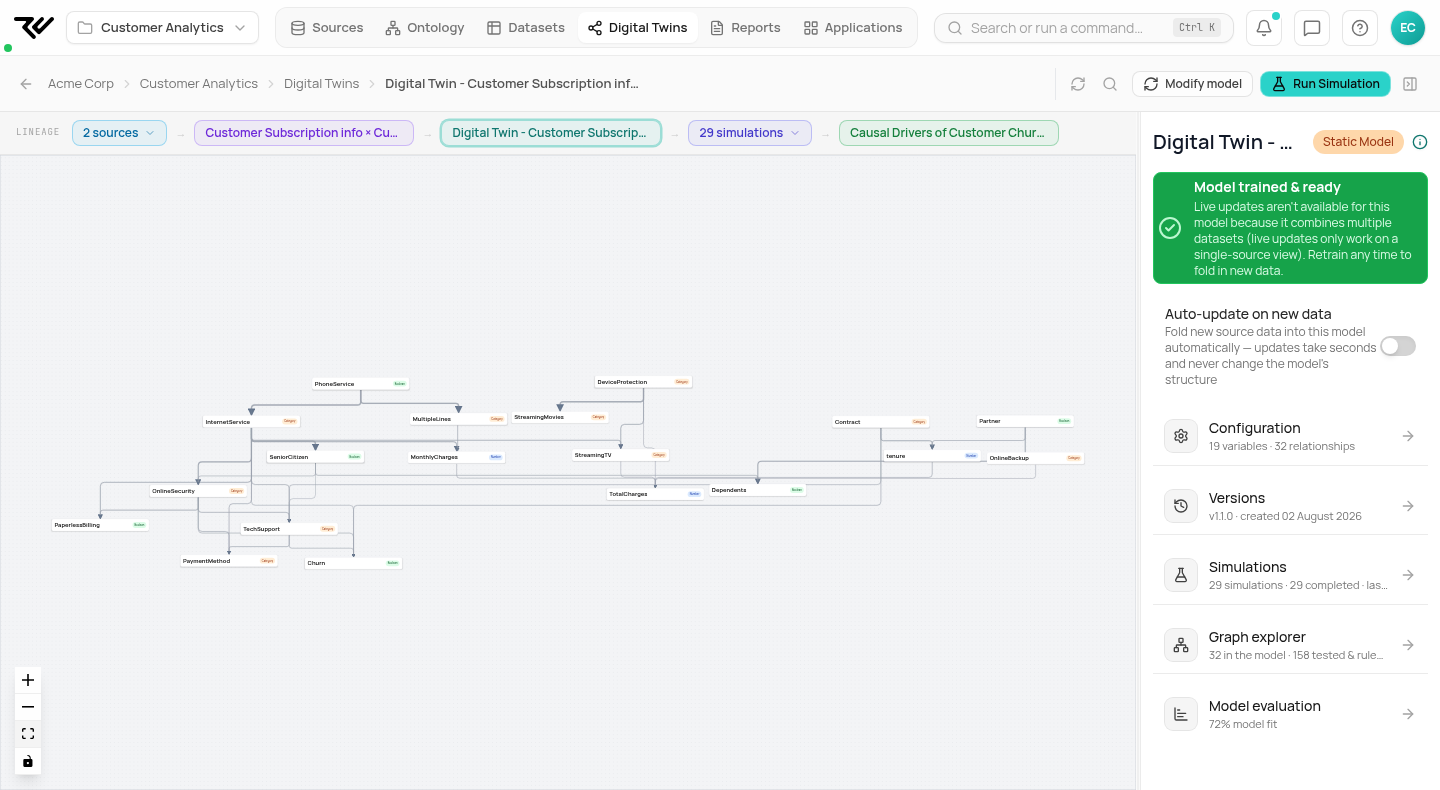
When you open a Digital Twin from the Digital Twin Management page, the causal graph fills the centre and the Overview panel sits on the right. The graph is where the model lives — every variable, every relationship, every direction of cause and effect is visible at once.

This page covers the two things you do most often in this view: pick a layout for the whole graph, and drill into a single variable to see what drives it. The other sections of the Overview panel — model quality, configuration, version history, individual relationships — have their own pages.

For context on how a Digital Twin is built in the first place, see [Step 5: Build Digital Twin](/user-guide/creating-digital-twin.md).

***

## Two layouts: Flowchart and DAG

The toolbar above the canvas switches the layout. The model is the same — only the arrangement of nodes and edges changes.

### Flowchart

Variables flow left to right by their position in the causal chain. Inputs on the left, outcomes on the right. Good for tracing a single path from cause to effect.

<figure><img src="/files/vnV7dscA53V5FK3jiOAx" alt="Digital Twin Management page with the model shown as a left-to-right flowchart"><figcaption><p>The flowchart layout. Inputs sit on the left, outcomes on the right.</p></figcaption></figure>

### DAG

The same model drawn as a node-and-edge graph: nodes positioned by their relationships rather than by causal level. Good for spotting clusters and central variables.

<figure><img src="/files/Il0zeDBJRHneliep2suw" alt="The same Digital Twin shown as a DAG with circular nodes"><figcaption><p>The DAG layout. The legend on the left maps node colour to data type and edge style to relationship type.</p></figcaption></figure>

***

## The Overview panel

The right-hand panel summarises the state of the twin:

* **Model status banner** — green when the twin is trained and ready to simulate, with a **Run Simulation** button.
* **Version details** — version number, last-modified date, and a one-line summary of what changed.
* **Config** — datasource, included variables, model type. Three links open deeper views: *View Config*, *View Relationships* (opens the [Causal Relationships](/more-details/digital-twin/causal-relationships.md) panel), and *Create New Version*.
* **Evaluation** — accuracy bar. *View Evaluation* opens [Reviewing Model Quality](/more-details/digital-twin/model-quality.md).
* **Simulations** — recent runs and suggested runs. *View All Simulations* opens the full history; the same content is covered in [Step 6: Run Simulations](/user-guide/simulations.md).
* **To Do's** — model-generated suggestions for interventions worth running, each tagged with the simulation type that produced it and a **Run** button to launch it.

***

## Inspecting a single variable

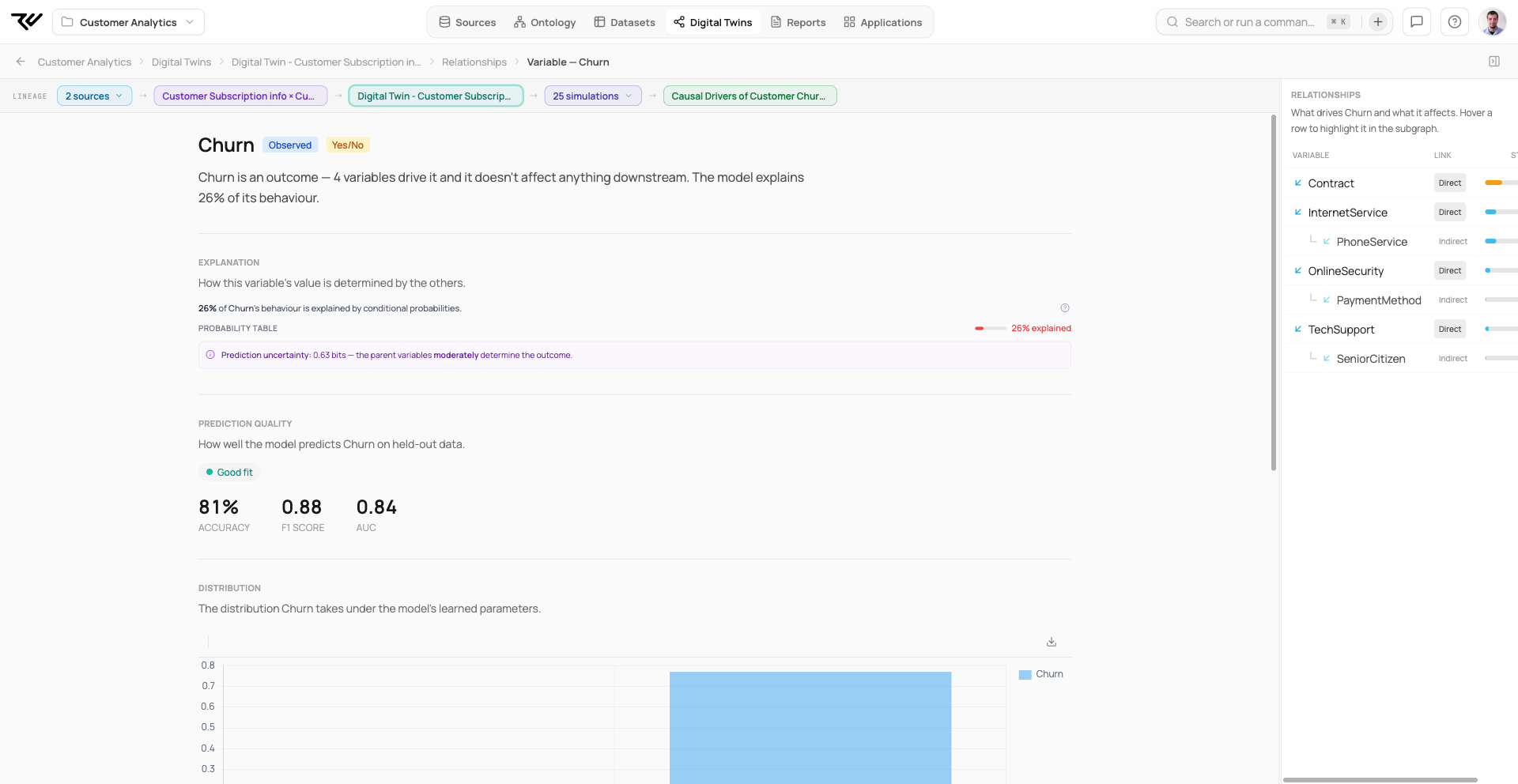
Click any node in the graph and the right panel switches to **Variable Details**. You see:

* A natural-language summary of how the variable is influenced.
* A ranked list of top influencers with their relative strength.
* A Sankey diagram labelled **100% explained** — width proportional to causal contribution.

<figure><img src="/files/evAIXYEI8tpP3S1CFwx2" alt="Variable Details panel for Churn next to the flowchart layout, with a Sankey diagram in the bottom right"><figcaption><p>Variable Details for Churn, with the flowchart in the centre and the Sankey in the bottom right.</p></figcaption></figure>

The same panel works alongside the DAG view; the selected node is highlighted on the graph.

<figure><img src="/files/2okpMDAKumgnBen5cawI" alt="Variable Details panel for Churn with the DAG layout in the centre and the selected node highlighted"><figcaption><p>The same Variable Details panel against the DAG view.</p></figcaption></figure>

### Reading the Sankey

The diagram is normalised: every incoming path sums to 100%. The widest flow is the dominant driver; narrow flows are minor contributors. In the example, Churn is driven primarily by InternetService, with OnlineSecurity, Contract, TechSupport, and tenure as supporting drivers.

***

## What to look for

* **The chain from input to outcome.** Pick the variable you care about — usually a business outcome — and trace backward through the graph. The widest Sankey flows tell you where intervention will have the most leverage.
* **Direct vs indirect drivers.** A variable can affect an outcome through several routes. The Sankey shows the relative weight; the graph shows the actual path.
* **Surprises.** A driver you didn't expect in the top three. A relationship that runs the wrong way. A central variable that nothing else points to. These are usually the most interesting findings — and the most useful to validate with domain knowledge.

***

## Other Working with a Digital Twin pages

* **Reviewing Model Quality** *(coming soon)* — how trustworthy is the model?
* [Inspecting Causal Relationships](/more-details/digital-twin/causal-relationships.md) — individual edges and their statistics.
* [Configuration](/more-details/digital-twin/configuration.md) — model settings, included variables, constraints.
* **Version History** *(coming soon)* — multiple versions of the same twin.

See [Digital Twin overview](/more-details/digital-twin.md) — general overview.


---

# Agent Instructions: Querying This Documentation

If you need additional information that is not directly available in this page, you can query the documentation dynamically by asking a question.

Perform an HTTP GET request on the current page URL with the `ask` query parameter:

```
GET https://docs.rootcause.ai/more-details/digital-twin/exploring-causal-model.md?ask=<question>
```

The question should be specific, self-contained, and written in natural language.
The response will contain a direct answer to the question and relevant excerpts and sources from the documentation.

Use this mechanism when the answer is not explicitly present in the current page, you need clarification or additional context, or you want to retrieve related documentation sections.