Applications
Applications are how analytical work leaves the workshop. The rest of the platform is where you build and validate models; Applications is where you package them into something an audience can consume: dashboards for humans, endpoints for other systems, scheduled automations, and AI assistants. Applications run on the workspace's data, Data Views, and Digital Twins, and their audience never needs to understand the models underneath.
Open Applications in the workspace's top navigation bar. The list shows every application with its type, owner, status, and last update. Click New application to start the builder.

Application types
The first step of the builder asks what kind of application you are creating. The core flow underneath is the same; only the wrapper changes, and you can change everything later.
Dashboard Application
Curated answers for humans to read. Compose tiles, charts, and tables on a layout people can open, share, and explore, powered by a live data flow underneath.
Operations health for the on-call team; a weekly revenue snapshot
API Application
A programmable endpoint other systems can call. Define a request, run a flow, return a typed response; other services, scripts, and AI tools can hit it like any REST endpoint.
Score a transaction for fraud risk; resolve a customer ID to a profile bundle
Automation Application
A scheduled or event-driven flow. Run on a cron, webhook, or event, and land outputs in datasets, datastores, or downstream systems. No UI required.
Nightly data quality check; hourly model retrain pipeline
AI Application
An LLM-driven app with scoped tools. Define a goal, a scope, and a toolbelt; the AI reasons over your data, calls only the tools you allow, and produces structured answers.
A customer-support copilot scoped to one team; an investigation agent that queries the ontology

An API Application is an endpoint you build on your workspace's data. It is distinct from the platform's own REST API (see API Access) and from OAuth Apps, which are third-party clients that authenticate against RootCause.
The AI Application type is the newest of the four and still maturing: its preview chat and toolbelt are being wired up. Expect it to evolve faster than the other three.
Creating an application
The builder walks through four steps: Type, Start, Configure, and Launch.
What kind of application? Pick one of the four types above.
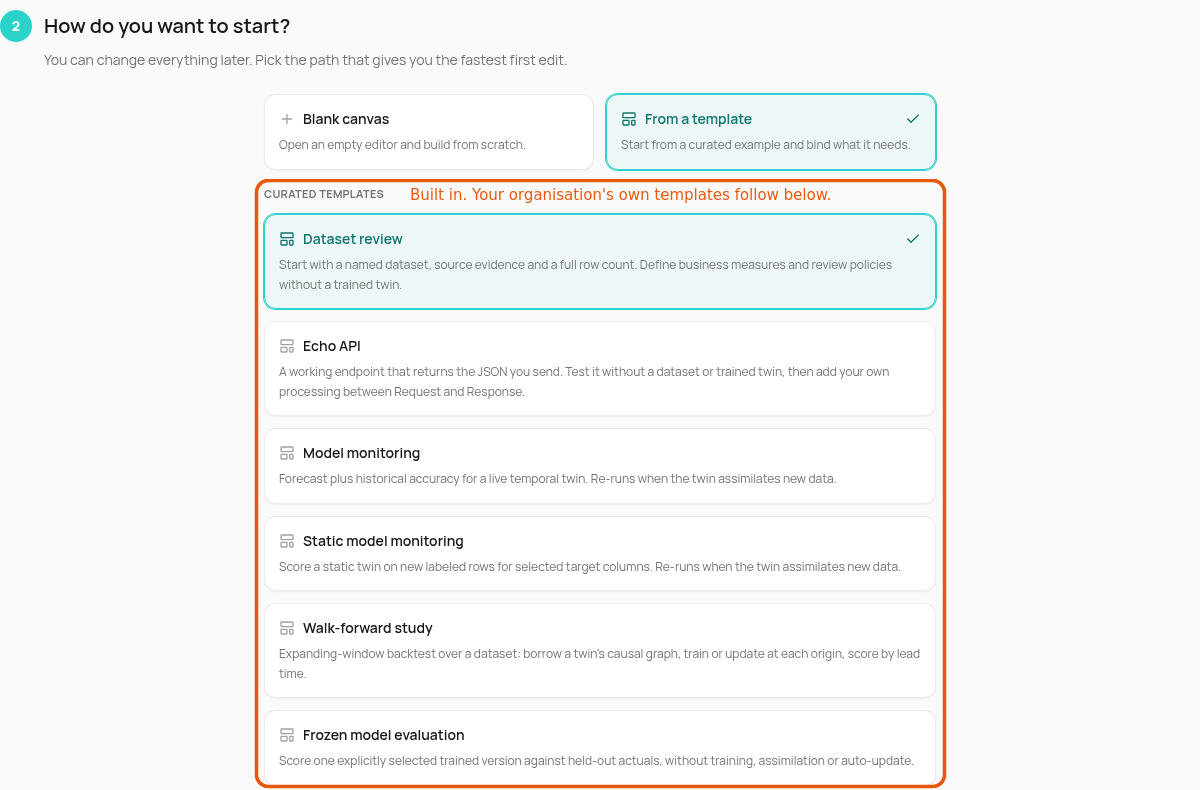
How do you want to start? Three paths:
Blank canvas — open an empty editor and build from scratch.
Start from a prompt — describe what you want and let AI scaffold the flow.
Pick a template — start from a curated example for the chosen type.
Configure basics — a short, recognizable name, a one-line description ("what it does and who it's for"), and optional tags.
Review & launch — a recap of exactly what will be created. Click Create application.

Creating the application makes a draft and opens it in the editor.
The editor and the flow
Every application is powered by a flow: a graph of modules (data sources, transforms, simulations, outputs) wired together on a canvas. The editor's tabs depend on the type:
Dashboard
Preview (what viewers see) and Build (the flow of modules and wiring underneath)
API
Flow and Test (an API app gets pinned request-in and response-out modules)
Automation
Trigger and Flow
AI
Scope, Tools, and Preview
Automations are started by a trigger, configured on the Trigger tab: run manually, on a schedule (cron expression plus timezone), from a webhook (a secret URL you can rotate), or on a platform event (a topic plus filters, e.g. on new uploads).
Application lifecycle
The Status column on the Applications list tracks the lifecycle: Draft (still being built), Published (live and consumable), or Archived (retired).
Publishing is a separate act from creating. Click Publish in the editor; a short wizard walks through Version, Access, Surfaces, and Review:
Each publish snapshots an immutable version with a version number, so later edits to the draft never disturb what consumers are using. Published versions can be listed, archived, and reactivated, and an application can be unpublished back to draft.
The platform validates before publishing: a dashboard needs at least one widget bound to a data source, an API app needs its request and response modules, an automation needs a valid trigger.
Surfaces are derived from the type: a dashboard publishes to the UI, an API app to REST, and schedule or webhook triggers add their own surface.
Where a published application runs:
Dashboards with public access get a shareable URL at
/p/<slug>(with an embeddable variant), branded with the organization's logo — the "public apps" the organization branding settings refer to.API applications are callable at
POST /api/v1/apps/<slug>, authenticated with per-app API keys issued from the publish panel.Automations run on their schedule, or on calls to their webhook URL. Event triggers only fire for published applications.
Applications and the rest of the workspace
Applications are first-class actors in the workspace:
Simulations run by an application appear in the twin's simulation history; the Ran by filter separates runs by People from runs by Apps.
The organization's roles carry a dedicated Applications permission area that controls who can build and manage applications. See Organisation Administration.
An application's lineage is visible from the data side: a Data View's lineage bar traces through the Digital Twin to the reports and apps built on it.
Last updated