> For the complete documentation index, see [llms.txt](https://docs.rootcause.ai/llms.txt). Markdown versions of documentation pages are available by appending `.md` to page URLs; this page is available as [Markdown](https://docs.rootcause.ai/data-sources-and-connectors/sources-overview.md).

# Sources Overview

What sources are, where they live, and every way data gets into RootCause.

Everything RootCause does starts from a **source**: a raw table, spreadsheet, document or feed that you upload or connect. Sources are owned by your organisation and linked into workspaces, so the same source can serve several projects without being imported twice.

This section covers the two ways data gets in:

* [Local Uploads](/data-sources-and-connectors/local-uploads.md): files from your computer. Best for one-off analyses and data that does not change.
* [Connectors](/data-sources-and-connectors/connectors.md): live links to databases, warehouses, cloud storage and APIs. Best for data that keeps moving.

***

## Where sources live

Sources belong to the **organisation**. A workspace sees only the sources linked into it. This matters in two places:

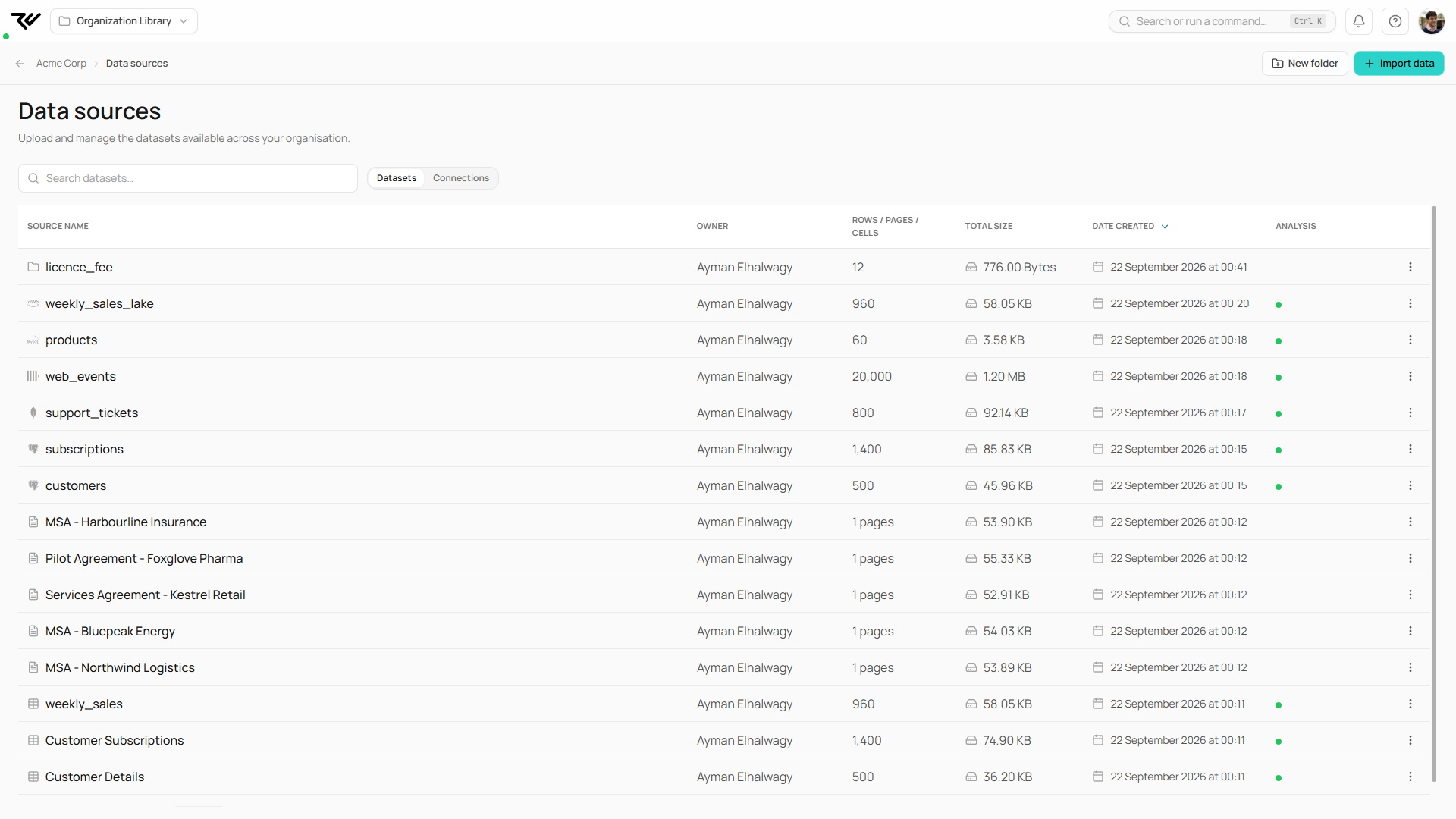
* The org-level **Data sources** page (Manage, then Data sources) lists every source and every connection in the organisation, whoever imported it.
* Inside a workspace, the **Sources** tab shows the sources linked to that workspace. The "From Organization" import reuses an existing org source; nothing is re-uploaded or re-synced.

<figure><img src="https://1662811113-files.gitbook.io/~/files/v0/b/gitbook-x-prod.appspot.com/o/spaces%2FBXg3gZLR0e2Q8SzeQmql%2Fuploads%2Fgit-blob-8d7baabd77b211e6968f6917c3b88576854b16b4%2Frc-org-data-sources.png?alt=media" alt="Org Data sources page listing every source with owner, size and analysis status"><figcaption><p>The org Data sources page: every source in the organisation, with owner, size and analysis status.</p></figcaption></figure>

***

## The Import Manager

Both entry points open the same Import Manager:

1. In a workspace, open **Sources** and click **Import data**.
2. At organisation level, go to **Manage, Data sources** and click **Import data**.

The **New Import** tab offers first-party sources and connectors, filterable by category (All Sources, Databases, Cloud Storage, File Upload, APIs & Services) or by search.

<figure><img src="https://1662811113-files.gitbook.io/~/files/v0/b/gitbook-x-prod.appspot.com/o/spaces%2FBXg3gZLR0e2Q8SzeQmql%2Fuploads%2Fgit-blob-9dbf30366a0c633a0893ef460a9525757f0bbe09%2Frc-import-manager-new-import.png?alt=media" alt="Import Manager New Import tab with source cards and connector grid"><figcaption><p>The Import Manager: first-party sources on top, connectors below, with Setup badges until a connection exists.</p></figcaption></figure>

### All sources

| Source                              | What it does                                                                                                                                                               |
| ----------------------------------- | -------------------------------------------------------------------------------------------------------------------------------------------------------------------------- |
| **Local File Upload**               | Upload files straight from your computer. See [Local Uploads](/data-sources-and-connectors/local-uploads.md).                                                              |
| **From Organization**               | Reuse a dataset another workspace has already imported. Available inside workspaces only.                                                                                  |
| **Foundational Ontologies Library** | Install a curated foundational ontology, concepts plus licensed data, in one step. See [Foundational Ontologies](/data-sources-and-connectors/foundational-ontologies.md). |
| **Extract from Documents**          | Turn contracts and reports you have uploaded into structured tables. See [Documents](/data-sources-and-connectors/local-uploads/document-uploads.md).                      |
| **Web Research**                    | Research the web into a table, from tables on a page or from a prompt.                                                                                                     |

### Connectors

| Connector                                                                               | Type           |
| --------------------------------------------------------------------------------------- | -------------- |
| [PostgreSQL](/data-sources-and-connectors/connectors/postgresql.md)                     | Database       |
| [MySQL](/data-sources-and-connectors/connectors/mysql.md)                               | Database       |
| [ClickHouse](/data-sources-and-connectors/connectors/clickhouse.md)                     | Database       |
| [MongoDB](/data-sources-and-connectors/connectors/mongodb.md)                           | Database       |
| [Snowflake](/data-sources-and-connectors/connectors/snowflake.md)                       | Data warehouse |
| [BigQuery](/data-sources-and-connectors/connectors/bigquery.md)                         | Data warehouse |
| [Amazon S3](/data-sources-and-connectors/connectors/s3.md)                              | Cloud storage  |
| [Azure Data Lake](/data-sources-and-connectors/connectors/azure-data-lake.md)           | Cloud storage  |
| [Google Cloud Storage](/data-sources-and-connectors/connectors/google-cloud-storage.md) | Cloud storage  |
| [Google Drive](/data-sources-and-connectors/connectors/google-drive.md)                 | Cloud storage  |
| [REST API](/data-sources-and-connectors/connectors/rest-api.md)                         | API            |

A connector card shows **Setup** until a connection of that type exists, then a green connected count. Connections themselves are managed on the org Data sources page under the **Connections** tab.

***

## What happens after an import

Every import lands as a source and, for tabular data, goes through ontology analysis automatically: the platform reads the schema, extracts concepts and links columns that mean the same thing across sources. The Analysis column on the Data sources page tracks this. See [Build Ontology](/user-guide/ontology-concepts.md) for reviewing the result.

The **Current Imports** tab of the Import Manager shows this session's imports with progress, row and column counts, and any errors.

***

## Keeping connected data fresh

Connected sources can sync manually (Sync Now) or on a schedule (hourly, daily, weekly, monthly). Some import modes keep only a rolling window of recent data, and one mode, Query Directly, imports nothing at all and reads the origin on every query. The [Connectors](/data-sources-and-connectors/connectors.md) page covers all modes.

***

## Working with sources programmatically

Everything on this page can be automated:

* **REST API**: list org and workspace sources, upload, replace and extend files, trigger syncs, read records and schemas, export, and link or unlink sources to workspaces. See the [REST API Reference](/api-and-integrations/rest-api-reference.md) (Sources group) and [API Access](/api-and-integrations/api-access.md) for keys.
* **Python SDK**: the same objects from Python, including registering connectors and importing from them. Start with [Python SDK](/api-and-integrations/sdk-getting-started.md) and [Sources from Connectors](/api-and-integrations/sdk-getting-started/sdk-sources-from-connectors.md).
* **AI clients (MCP)**: a connected assistant can inventory, import, link and query sources on request. See [What You Can Do](/api-and-integrations/api-access/mcp-integration/mcp-capabilities.md).
