> For the complete documentation index, see [llms.txt](https://docs.rootcause.ai/llms.txt). Markdown versions of documentation pages are available by appending `.md` to page URLs; this page is available as [Markdown](https://docs.rootcause.ai/data-sources-and-connectors/local-uploads/excel-workbooks.md).

# Excel & Spreadsheets

How Excel uploads become workbook sources, and how to extract tables that survive re-upload.

Spreadsheets are not tables. One workbook can hold several tables per sheet, matrices with dates across the top, subtotal rows, hidden sheets and formulas. RootCause keeps the workbook whole and lets you extract exactly the tables you want, instead of guessing one table per sheet and hoping.

***

## What an Excel upload becomes

* **.xlsx and .xlsm** files become a **Workbook** source: the file is kept as-is and read cell by cell. Its size is counted in cells, not rows.
* **.xls and .ods** files are read one table per sheet, like a CSV per sheet.
* A legacy .xls file renamed to .xlsx is detected by content and read sheet by sheet, with a warning on the import telling you what happened.
* A file that is not readable as a spreadsheet is refused at upload with an error, never silently registered empty.

***

## The workbook view

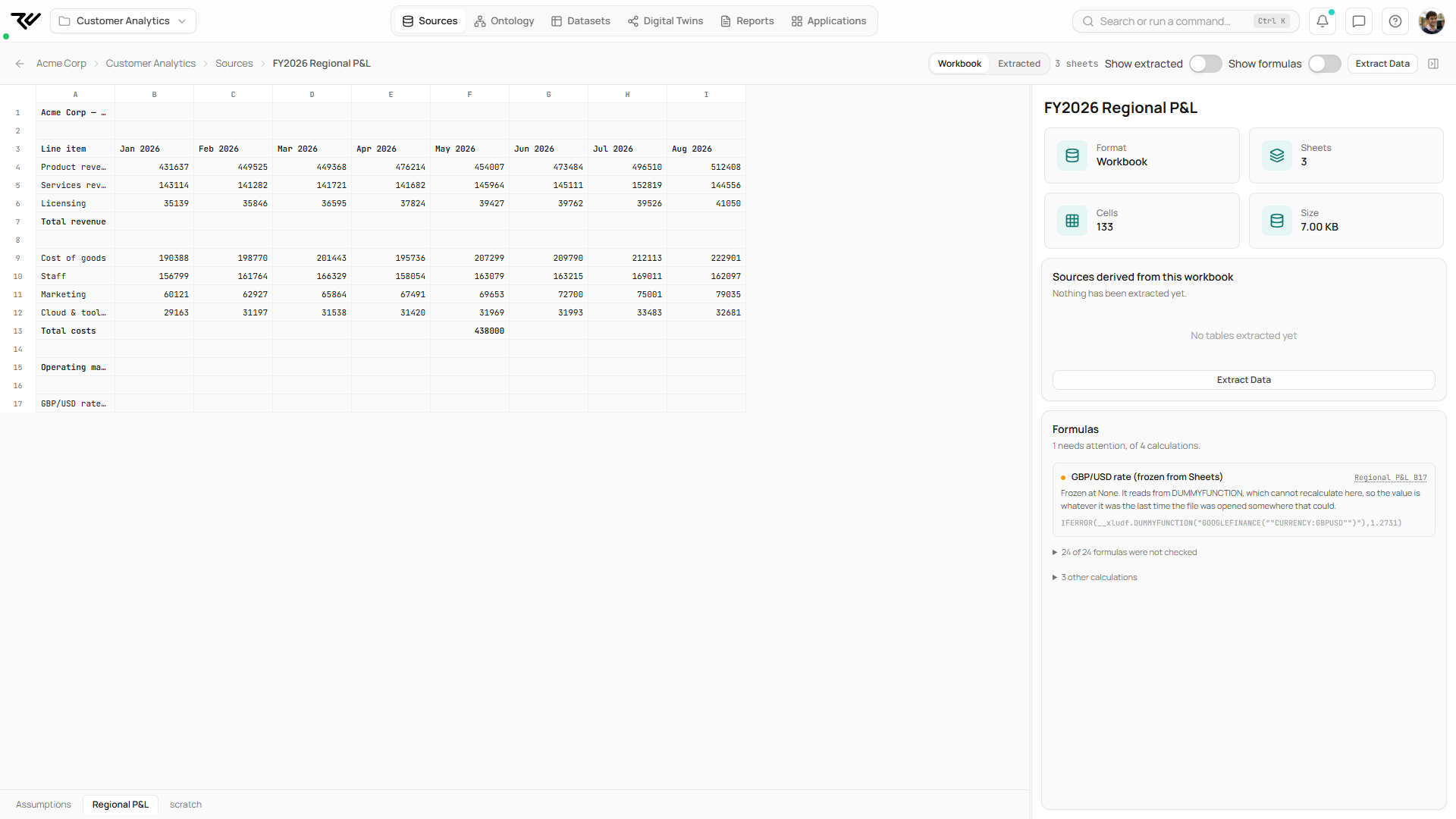
Opening a workbook source shows the spreadsheet itself: a grid with cell addresses, sheet tabs along the bottom, and toggles to highlight extracted regions (**Show extracted**) and display formulas (**Show formulas**). The sidebar shows format, sheet count, cell count and size, plus every source derived from this workbook.

<figure><img src="https://1662811113-files.gitbook.io/~/files/v0/b/gitbook-x-prod.appspot.com/o/spaces%2FBXg3gZLR0e2Q8SzeQmql%2Fuploads%2Fgit-blob-a9c8da4823a4b0e4b8deaed8c742d1dd548af626%2Frc-workbook-viewer.png?alt=media" alt="Workbook source with sheet grid, sheet tabs, stat cards and formula panel"><figcaption><p>A workbook source: the sheet itself, sheet tabs, stat cards, derived sources and the formula health check.</p></figcaption></figure>

{% hint style="info" %}
A workbook cannot back a dataset directly: its rows are cells, not records. Extract a table from it first; the extraction is an ordinary tabular source and can back anything.
{% endhint %}

***

## Extracting tables

Click **Extract Data** on the workbook (or the Extract tables panel inside the workbook view). RootCause scans every sheet for table-shaped regions and proposes candidates. Each candidate is a stored query over the sheet, and each one you keep becomes its own tabular source.

Candidates come in a few shapes:

* **Tables**: plain rectangles with a header row.
* **Matrices**: sheets that read sideways, for example dates across the top and labels down the left. These arrive already unpivoted into long form, with aggregate columns and subtotal rows recognised and excluded.
* **Panels**: several same-shaped sheet tabs offered as one combined table.
* **Positional**: regions with no recognisable header, addressed by position. These are flagged with a caution and left unticked, because they break if the workbook is re-uploaded with rows shifted.

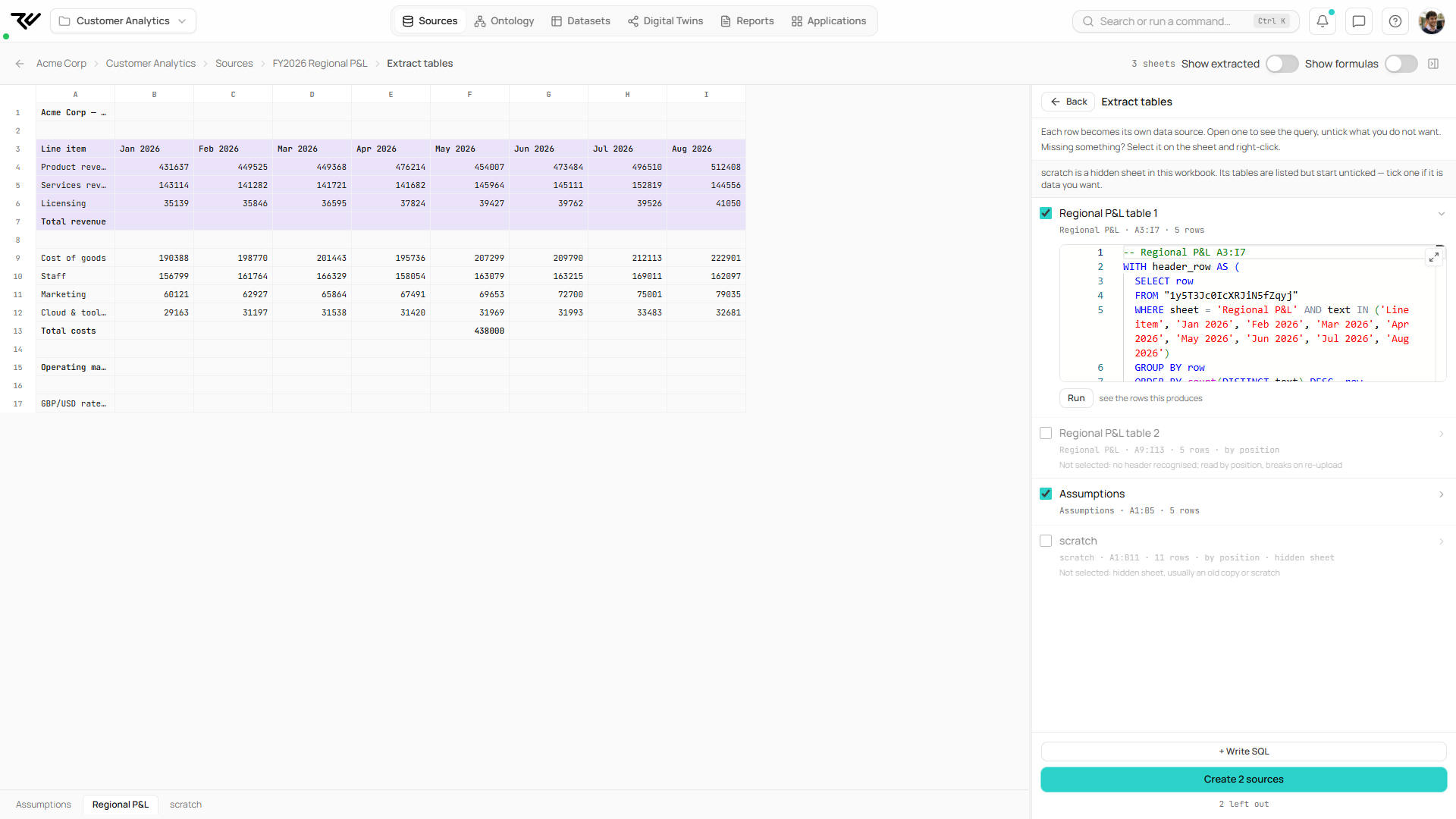
Candidates start ticked except hidden sheets, members of a panel, and positional reads; each unticked row states its reason. Open a candidate to see its rows: subtotal rows are dropped for you and listed, and you can toggle any row back with **keep all**. Missing a region entirely? Select it on the sheet and right-click to turn the selection into a candidate, or use **+ Write SQL** for full control.

<figure><img src="https://1662811113-files.gitbook.io/~/files/v0/b/gitbook-x-prod.appspot.com/o/spaces%2FBXg3gZLR0e2Q8SzeQmql%2Fuploads%2Fgit-blob-016135455041101a6f801f5047c559993c9b7920%2Frc-workbook-extract-panel.png?alt=media" alt="Extract tables panel with detected candidates and their stored SQL"><figcaption><p>Detected candidates with their stored SQL. Positional reads and hidden sheets start unticked, each with its reason.</p></figcaption></figure>

### Extractions that survive re-upload

When you create sources, each extraction query is stress-tested: it is re-run over the same sheet shifted down and right, and again with rows appended. An extraction that would silently grab the wrong cells after a re-upload is flagged, and one that fails outright is refused. When the workbook file is later replaced, every derived source re-runs its stored query over the new file automatically.

***

## Formula review

Spreadsheets lie in well-understood ways, so workbooks get a formula health check, computed on demand from the live file:

| Finding         | Meaning                                                                                                                                                      |
| --------------- | ------------------------------------------------------------------------------------------------------------------------------------------------------------ |
| Overwritten     | A literal value typed over a cell that should hold a shared formula. The classic silent spreadsheet error.                                                   |
| Cached error    | The cell stores an error value such as #REF! or #DIV/0!.                                                                                                     |
| Frozen external | The formula reaches outside the file (for example GOOGLEFINANCE from a Google Sheets export) and will never recompute again. The stored value is a snapshot. |
| Divergent       | Recomputing the formula gives a different value than the one stored.                                                                                         |

Findings are grouped by calculation, with the downstream calculations each one feeds, so you can judge blast radius. Coverage is reported honestly: formulas that could not be checked say why.

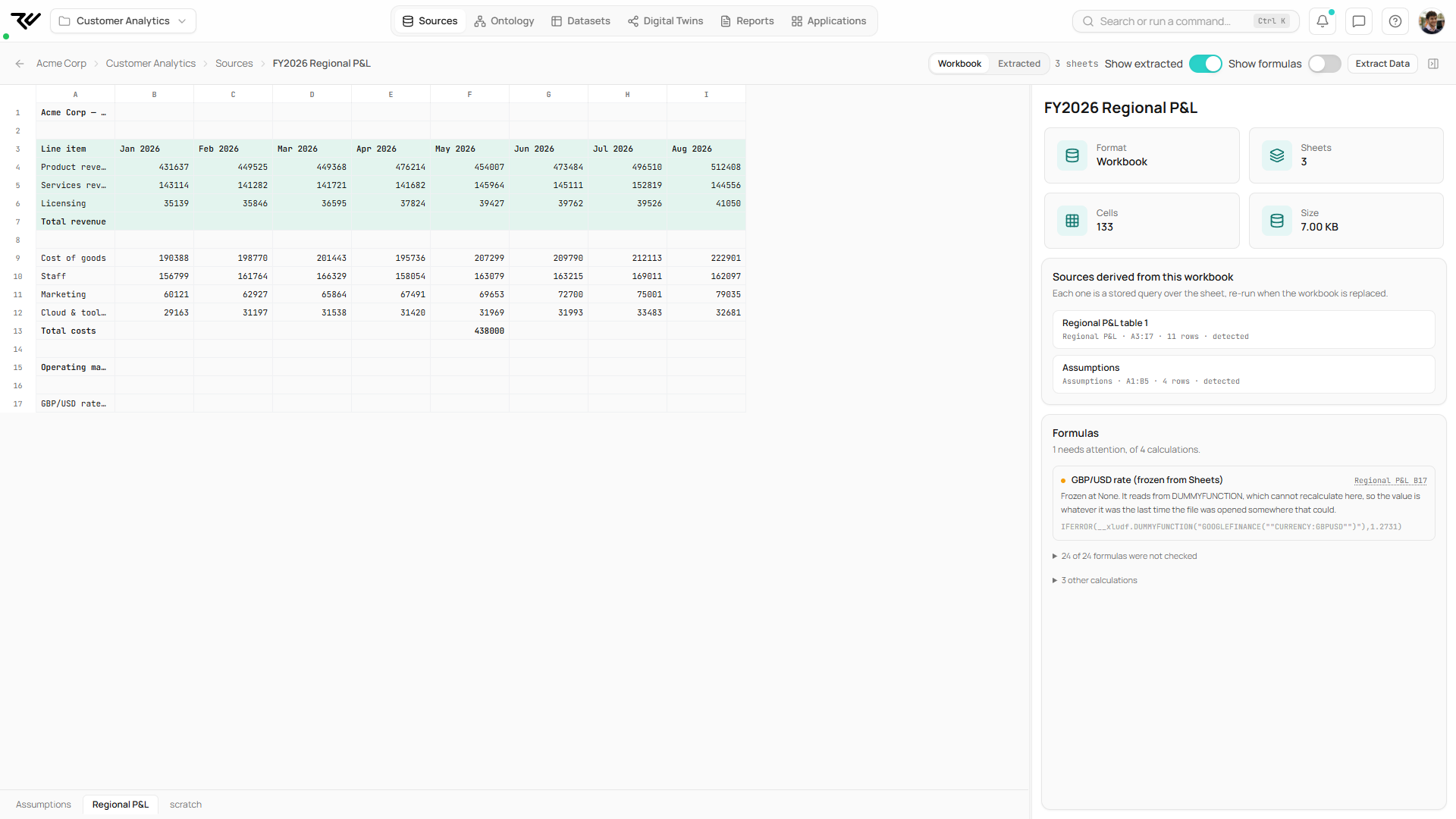
<figure><img src="https://1662811113-files.gitbook.io/~/files/v0/b/gitbook-x-prod.appspot.com/o/spaces%2FBXg3gZLR0e2Q8SzeQmql%2Fuploads%2Fgit-blob-7c2b2e294129c57855df08e4f5e9dce549ec3da1%2Frc-workbook-derived-formulas.png?alt=media" alt="Workbook with extracted regions highlighted, derived sources and a flagged frozen formula"><figcaption><p>Extracted regions highlighted on the sheet, the derived sources they created, and a frozen external formula flagged in the health check.</p></figcaption></figure>

***

## Workbooks through an AI client

A connected [AI client](/api-and-integrations/api-access/mcp-integration/mcp-capabilities.md) can do all of this conversationally: detect the tables in a workbook, extract the ones you name, and run the formula health check, using the same detection and resilience rules as the UI.