> For the complete documentation index, see [llms.txt](https://docs.rootcause.ai/llms.txt). Markdown versions of documentation pages are available by appending `.md` to page URLs; this page is available as [Markdown](https://docs.rootcause.ai/data-sources-and-connectors/local-uploads/document-uploads.md).

# Documents

Document sources, and extracting structured tables from contracts and reports.

PDFs, Word documents, PowerPoints, Markdown and plain text upload like any other file and become **document sources**. Documents are readable and searchable on their own, and their real value is extraction: turning a pile of contracts or reports into structured tables you can analyse.

***

## What a document upload becomes

1. The original file is stored and viewable from the source page.
2. Text extraction runs in the background. The source's extraction status moves from pending to extracting to completed (or failed).
3. Once completed, the source page offers two downloads: the original file and the extracted text as Markdown.

<figure><img src="https://1662811113-files.gitbook.io/~/files/v0/b/gitbook-x-prod.appspot.com/o/spaces%2FBXg3gZLR0e2Q8SzeQmql%2Fuploads%2Fgit-blob-4f4d6e7a221ae08633d44a8fa39687f8f291567e%2Frc-document-source.png?alt=media" alt="Document source page with original beside extracted text and detected tables"><figcaption><p>A document source once extraction completes: original beside the extracted text, detected tables in the toolbar, and version history.</p></figcaption></figure>

Re-uploading a document with identical content is a safe no-op, and a replaced document only becomes current after its new version finishes extracting, so downstream reads never see a half-extracted file.

***

## Extract from Documents

In the Import Manager, choose **Extract from Documents**. The wizard has four steps and one real decision.

### 1. Which documents should we read?

Pick documents from the workspace. Folders open on click and only document files are selectable.

### 2. What should one row be?

<figure><img src="https://1662811113-files.gitbook.io/~/files/v0/b/gitbook-x-prod.appspot.com/o/spaces%2FBXg3gZLR0e2Q8SzeQmql%2Fuploads%2Fgit-blob-d3e37f756d614864ef270a4f084f30e17177d583%2Frc-extract-wizard-shape.png?alt=media" alt="The three extraction shape cards"><figcaption><p>The one real decision: what should one row be?</p></figcaption></figure>

| Shape                               | Meaning                                                                                                    | Result                                                                                                  |
| ----------------------------------- | ---------------------------------------------------------------------------------------------------------- | ------------------------------------------------------------------------------------------------------- |
| **One row per document**            | Summarise each document into a single row, good for comparing documents side by side.                      | N documents produce N rows, for example contract\_value, renewal\_date and notice\_period per contract. |
| **Every mention**                   | Pull each occurrence of a thing: every fee line, every party, every deadline, however many a document has. | As many rows as there are mentions. Three fee lines in one contract make three rows.                    |
| **Tables already in the documents** | Lift tables the documents already contain, as-is. No columns to describe; you pick which tables to keep.   | Each table becomes its own data source, profiled and added to the ontology.                             |

### 3. Describe the columns, then preview

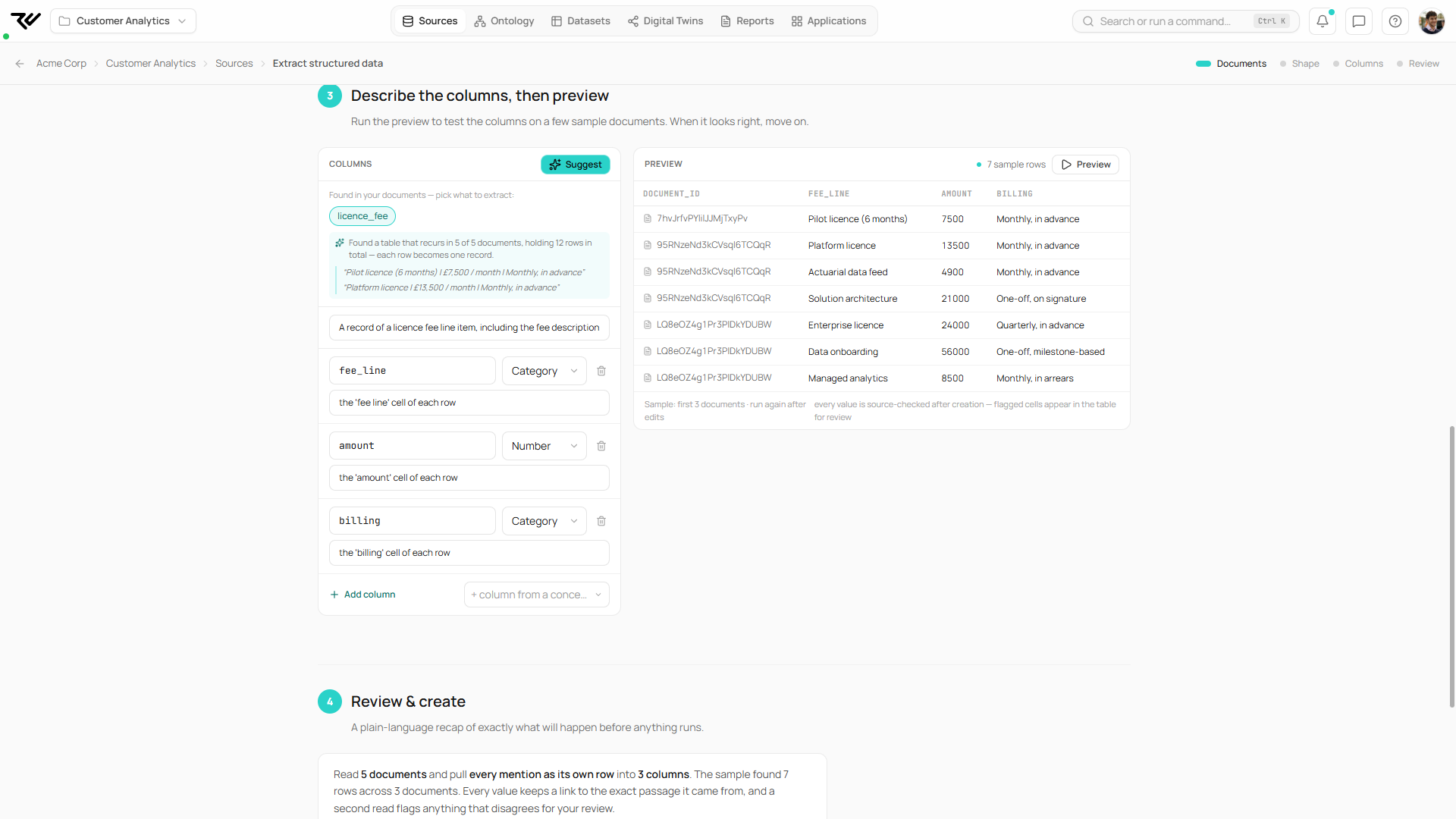
Describe each column in plain language, or click **Suggest** and let the platform propose columns from the documents themselves, each with the evidence that motivated it. Columns can also be bound to existing ontology concepts. **Preview** runs the extraction over a few sample documents so you can check the columns before committing.

<figure><img src="https://1662811113-files.gitbook.io/~/files/v0/b/gitbook-x-prod.appspot.com/o/spaces%2FBXg3gZLR0e2Q8SzeQmql%2Fuploads%2Fgit-blob-f295a3d756eeb48ea1187a5edda2a78b0da90cc9%2Frc-extract-wizard-columns.png?alt=media" alt="Columns step with suggested columns, evidence and a live preview"><figcaption><p>Suggested columns with the evidence that motivated them, and a live preview over sample documents.</p></figcaption></figure>

If you chose the tables shape, this step lists the detected tables instead, all pre-ticked, with row counts and samples.

### 4. Review and create

A plain-language recap of exactly what will happen before anything runs. Name the result, choose concept handling (Auto-extract or Bind to schema) and click **Create data source**. Table extractions are created immediately; the other shapes run in the background, tracked in Current Imports.

***

## Trustworthy values

* Every extracted value keeps a link to the exact passage it came from.
* In the every-mention shape, a second read re-checks the values, and anything that disagrees is flagged in the table for your review.

***

## Appending documents later

Every extraction saves its recipe. When new documents arrive in the workspace, the source shows how many are not part of the extraction yet, and **Append** re-runs the same recipe over the new documents only. Existing rows, confirmed values and review work are untouched, and documents that were already extracted are skipped automatically.

<figure><img src="https://1662811113-files.gitbook.io/~/files/v0/b/gitbook-x-prod.appspot.com/o/spaces%2FBXg3gZLR0e2Q8SzeQmql%2Fuploads%2Fgit-blob-064618c00c43634f89b3222b81b0b88a795686f6%2Frc-extraction-append.png?alt=media" alt="Extraction result table with per-value source links and the append callout"><figcaption><p>The extracted table: every value links to its source document, values are source-checked after creation, and new workspace documents surface an Append callout.</p></figcaption></figure>

***

## Tables inside a single document

A document source whose text contains detectable tables shows a **Tables (n)** button. It opens the same table-lifting flow scoped to that one document, so a report's tables become data sources in two clicks.

***

## Extraction through an AI client

Document extraction is fully scriptable through a connected [AI client](/api-and-integrations/api-access/mcp-integration/mcp-capabilities.md): the same three shapes, schema suggestions, background runs and appending, driven in conversation. Documents themselves upload over the [REST API](/api-and-integrations/rest-api-reference.md) like any other file.