> For the complete documentation index, see [llms.txt](https://docs.rootcause.ai/llms.txt). Markdown versions of documentation pages are available by appending `.md` to page URLs; this page is available as [Markdown](https://docs.rootcause.ai/data-sources-and-connectors/connectors.md).

# Connectors

Live links to databases, warehouses, cloud storage and APIs, and the six import modes.

Connectors keep RootCause pointed at data that changes: databases, warehouses, cloud storage and APIs. Connect once, then import, sync on a schedule, or query the origin directly without importing at all.

***

## Available connectors

| Connector                                                                               | Category  | Selection                          |
| --------------------------------------------------------------------------------------- | --------- | ---------------------------------- |
| [PostgreSQL](/data-sources-and-connectors/connectors/postgresql.md)                     | Database  | Tables or custom SQL               |
| [MySQL](/data-sources-and-connectors/connectors/mysql.md)                               | Database  | Tables or custom SQL               |
| [ClickHouse](/data-sources-and-connectors/connectors/clickhouse.md)                     | Database  | Tables or custom SQL               |
| [MongoDB](/data-sources-and-connectors/connectors/mongodb.md)                           | Database  | Collections, with query filter     |
| [Snowflake](/data-sources-and-connectors/connectors/snowflake.md)                       | Warehouse | Warehouse, database, schema, table |
| [BigQuery](/data-sources-and-connectors/connectors/bigquery.md)                         | Warehouse | Datasets and tables, or SQL        |
| [Amazon S3](/data-sources-and-connectors/connectors/s3.md)                              | Storage   | Bucket, folder or file             |
| [Azure Data Lake](/data-sources-and-connectors/connectors/azure-data-lake.md)           | Storage   | Container, folder or file          |
| [Google Cloud Storage](/data-sources-and-connectors/connectors/google-cloud-storage.md) | Storage   | Bucket, folder or file             |
| [Google Drive](/data-sources-and-connectors/connectors/google-drive.md)                 | Storage   | Files you pick in Google's chooser |
| [REST API](/data-sources-and-connectors/connectors/rest-api.md)                         | API       | Endpoints from a spec, or manual   |

***

## Connecting

1. Open the Import Manager and click the connector's card.
2. Name the connection and fill in its credentials. Each connector's page documents its fields.
3. Click **Test connection** to verify, then **Save & continue**.

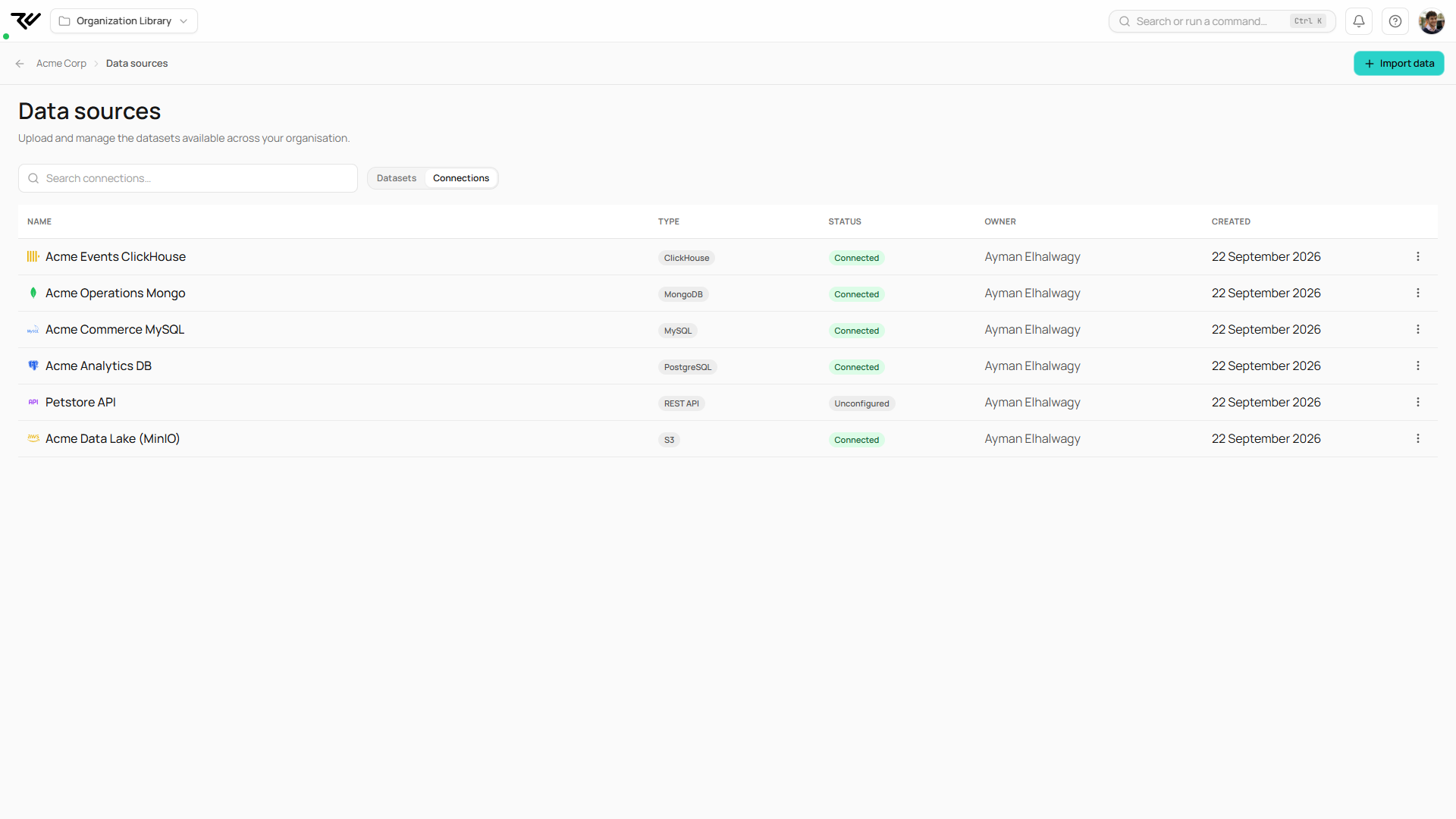
A connection belongs to the organisation and is reusable: the next import of that type offers the saved connection instead of asking for credentials again. Connections are listed on the org Data sources page under **Connections**, with type, status and owner.

<figure><img src="https://1662811113-files.gitbook.io/~/files/v0/b/gitbook-x-prod.appspot.com/o/spaces%2FBXg3gZLR0e2Q8SzeQmql%2Fuploads%2Fgit-blob-91bd4764ef781200eea064fda0a2cfc1ee34fc5a%2Frc-postgres-connection.png?alt=media" alt="PostgreSQL connection details with Test connection"><figcaption><p>A PostgreSQL connection: credentials, then Test connection before saving.</p></figcaption></figure>

<figure><img src="https://1662811113-files.gitbook.io/~/files/v0/b/gitbook-x-prod.appspot.com/o/spaces%2FBXg3gZLR0e2Q8SzeQmql%2Fuploads%2Fgit-blob-e14656994efb17ef68ad0654527b94d89d5100ae%2Frc-connections-tab.png?alt=media" alt="Connections tab listing every connection with type and status"><figcaption><p>Every connection in the organisation, with type, status and owner.</p></figcaption></figure>

***

## Choosing what to import

After the connection is saved you choose the data:

* **Databases and warehouses**: pick **Tables** to browse the live hierarchy and tick one or more tables (each becomes its own source, up to 20 per import), or **Custom Query** to write SQL that joins, filters or aggregates before import. Manual name fields appear only if browsing fails.
* **Cloud storage**: browse to a bucket or container, folder or single file. A folder import creates a folder source with one child source per file. Format is auto-detected (CSV, Parquet or JSON) and can be overridden, and sub-folders can be included.
* **MongoDB, Google Drive, REST API**: each has its own selection flow, described on its page.

***

## How much data to bring in

Most connectors offer six import modes:

| Mode                   | What it does                                                                                                                                                                     | Live           |
| ---------------------- | -------------------------------------------------------------------------------------------------------------------------------------------------------------------------------- | -------------- |
| **Full Import**        | Import all data once. No schedule.                                                                                                                                               | No             |
| **Full Import + Live** | Bring in everything, then keep it up to date on a schedule.                                                                                                                      | Yes            |
| **Recent Rows**        | Keep the newest N rows by an ordering column. Stores the selected rows oldest to newest.                                                                                         | Yes            |
| **Time Period**        | Keep a bounded time window (for example the last 60 minutes, hours or days) by a timestamp column. Each sync replaces the dataset with the current window, using one UTC cutoff. | Yes            |
| **Date Range**         | Import rows from an inclusive calendar range, once. PostgreSQL only.                                                                                                             | No             |
| **Query Directly**     | Read from the source on every query, importing nothing.                                                                                                                          | Always current |

**Sync Frequency** applies to the live modes: hourly, daily, weekly or monthly, or a **Custom cron** expression (five fields, minute to weekday, in your organisation's sync timezone). It can also be changed later from the dataset's connection panel, and **Sync Now** is always available for a one-off refresh.

By default a sync replaces the whole dataset with fresh data from the source. A source configured with an incremental watermark column pulls only the rows past the last watermark and appends them, or merges them on their key columns, instead.

<figure><img src="https://1662811113-files.gitbook.io/~/files/v0/b/gitbook-x-prod.appspot.com/o/spaces%2FBXg3gZLR0e2Q8SzeQmql%2Fuploads%2Fgit-blob-a0feb08637fc61231cc3ccb503e5e450002d633d%2Frc-import-modes.png?alt=media" alt="The six import modes for a PostgreSQL connection"><figcaption><p>The six import modes for a PostgreSQL connection.</p></figcaption></figure>

{% hint style="info" %}
Databases resolve rolling windows at the source and read only the selected rows. Storage connectors and Google Drive cannot, so a rolling window there re-reads the whole source on each scheduled sync. On storage, rolling windows also need a single object rather than a folder.
{% endhint %}

***

## Query Directly

Query Directly creates a source that is never imported. Every chart, table and report reads the origin at the moment you open it, so results are always current and the query load lands on your database or bucket.

Where it is available: PostgreSQL, MySQL, ClickHouse, Snowflake, BigQuery and the three cloud storage connectors. What to know:

* You provide an **ordering column** with a stable order, usually the primary key. Rows are paged straight from the source, and without one the same row can appear on two pages or none.
* A **query timeout** bounds each read, and for databases an optional **max rows scanned** ceiling is pushed down to the server.
* On storage, only **Parquet** is read, at the chosen path plus partition folders such as year=2025.
* Dataset version pinning and dataset optimisation are unavailable, and as-of joins and frequency analysis cannot run on a directly queried source.
* **Extend with new data** and **Replace with new data** are not offered: there is no stored copy to append to or swap out, so new rows reach the source only at the origin.
* If rows are only ever added at the origin, say so with the append-only toggle: digital twins can then train in place instead of copying a snapshot.

***

## Connectors over the API

The whole connector lifecycle is available programmatically:

* **REST API**: register and update connectors, test connections, browse the source hierarchy, preview queries, import, and create direct-query sources, all under `/api/v1/connectors`. See the [REST API Reference](/api-and-integrations/rest-api-reference.md).
* **Python SDK**: [Sources from Connectors](/api-and-integrations/sdk-getting-started/sdk-sources-from-connectors.md) walks from registering a connector to a trained model, including live SQL authoring against the source. Credentials are stored encrypted server-side and never returned by the API.
* **AI clients (MCP)**: a connected assistant can register connectors and run imports, with background runs it polls for you. See [What You Can Do](/api-and-integrations/api-access/mcp-integration/mcp-capabilities.md).

***

## Security recommendations

* Create a dedicated read-only user for RootCause on every database connection, restricted to the tables you import.
* Enable SSL where the connector offers it.
* Prefer scoped credentials for storage: a bucket-scoped IAM policy, a container SAS or service principal, a service account with read-only object access.
* Credentials are stored encrypted server-side and are never returned by the API; connector reads redact them.